
This guide explains how to program both driving and seating modes for Ability Drive®. The Mode Switch to access seat functions is enabled in the Ability Drive® app and can be toggled On or Off from the settings screen. When the Mode Switch is set to On, the mode button (crossing arrows) will appear on the drive screen. ATPs must ensure that the REM 500 Display is mounted up next to the eye gaze device screen and in clear view of the Ability Drive® user.
Technical support is available Monday - Friday, 7:00am - 3:00pm PST. Please call (425)242-3902 or email support@tolttechnologies.com.
Note: The Invacare TDX SP2 needs the following programming to be safe for use with Ability Drive®. The default driving speeds are too fast for use with Ability Drive® and the chair may not come to a stop in a short enough distance, possibly causing collision. ATPs must ensure the profile speeds are safe and suitable for their client's environment.
The Invacare TDX SP2 requires the following components be installed in order to use Ability Drive®:
Dynamic Controls Part Number: DLX-REM500: LiNX Touch Screen Display, Part Number: 1602828
Dynamic Controls Part Number: DLX-IN500: LiNX Input Module, Part Number: 1067396
Dynamic Controls Part Number: GLM-BUS200-A: LiNX Bus Cable 2.00 Meters (6.5 FT)
A PDF of this guide can be found at the end of this articleProgramming Guide for Invacare Using iOS LiNX Access
First, open the LiNX Access app and connect to the power-wheelchair.
Open User Preferences (found at bottom of screen).

Under Switched Driving
Set Constant Speed Trigger = 5%
Set Veer at low Speed = 35.00
Set Veer at High Speed = 10.02
Set High Speed reference = 35%
(Speeds should be configured to your client's chair, their unique environment, and their individual needs.)

Next click Back, and open Modules.
Select IN500
Under User Input - Configuration
Set User Input Configuration = Switches
Set Ignore Left-Right Opposite Demand = Yes
Set Delayed Activation for Switched User Input = No delay
Under Jack Socket Tip - Port Settings
Set Input Type = Power Button
(This is where the buddy button is connected to turn the chair off.)
Under Jacket Socket Ring - Port Settings
Set Input Type = Not Connected

Under Input Pin 5 - Port Settings
Set Input Type = Button
Set Advanced = blank
Set Momentary = blank
Set Short Press = blank
Set Long Press = blank
Set On Press = blank

Under Input Pin 6 - Port Settings
Set Input Type = Button
Set Advanced = Off
Set Momentary = Always
Select Functions
Select Next Function
Set Short Press = blank
Set Long Press = blank
Set On Press = blank
(This allows the user to page between cards using the mode button in Ability Drive®.)

Next, click Modules and then Back.
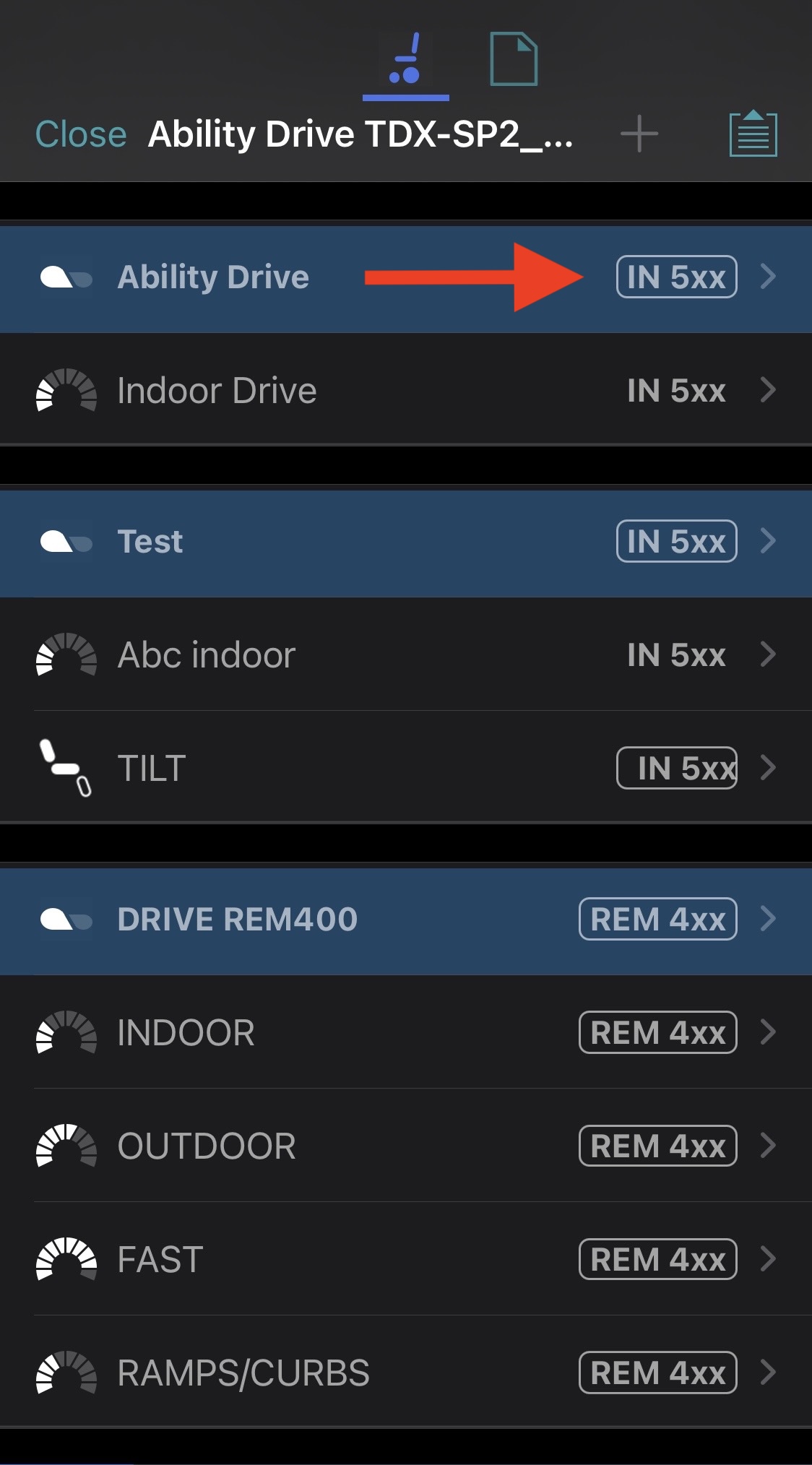
To add a Profile for Ability Drive, click Edit Functions (found at top of screen).

Click Add Profile

Set Profile Name = Ability Drive
Set User Input = IN 5xx
Click Done

Next, add a Function for Indoor Ability Drive.
Under the Ability Drive Profile
Click Add Function

Set Function Type = Drive
Set User Input = IN 5xx
Click Done

Select the Indoor Ability Drive Function
Under General
Set Drive Function Name = Indoor
Set Enable Drive Function = Yes
Set Function User Input = Input Module
Set Navigation Timeout Enabled = No
Set Drive Lockout Ignored = No
Under Forward
Set Max Forward Speed = 15%
Set Min Forward Speed = 15%
Set Forward Acceleration = 20%
Set Forward Deceleration = 50%
(These are guidelines, please adjust to fit your client, their chair, and the environment.)

Under Reverse
Set Max Reverse Speed = 20%
Set Min Reverse Speed = 20%
Set Reverse Acceleration = 20%
Set Reverse Deceleration = 70%
Under Turn
Set Turn Boost at Max Speed = 150%
Set Max Turn Speed = 15%
Set Min Turn Speed = 15%
Set Turn Acceleration = 30%
Set Turn Deceleration = 75%
(These are guidelines, please adjust to fit your client, their chair, and the environment.)

Under Stability
Set Turn Transition = 100%
Under Latched Driving
Set Latch Driving = Off
Set Latch Driving in Reverse = No
Set Latch Drive Timeout = 3,600.0s
Under Performance
Set Power = 100%
Set Gyro Enabled Drive Function = Yes

Under Operation
Set Quadrant Operation = 4Q Operation
Set Forward Quadrant Operation = Forward
Set Reverse Quadrant Operation = Reverse
Set Left Quadrant Operation = Left
Set Right Quadrant Operation = Right

Click Back.
Next, Open the Ability Drive Profile.
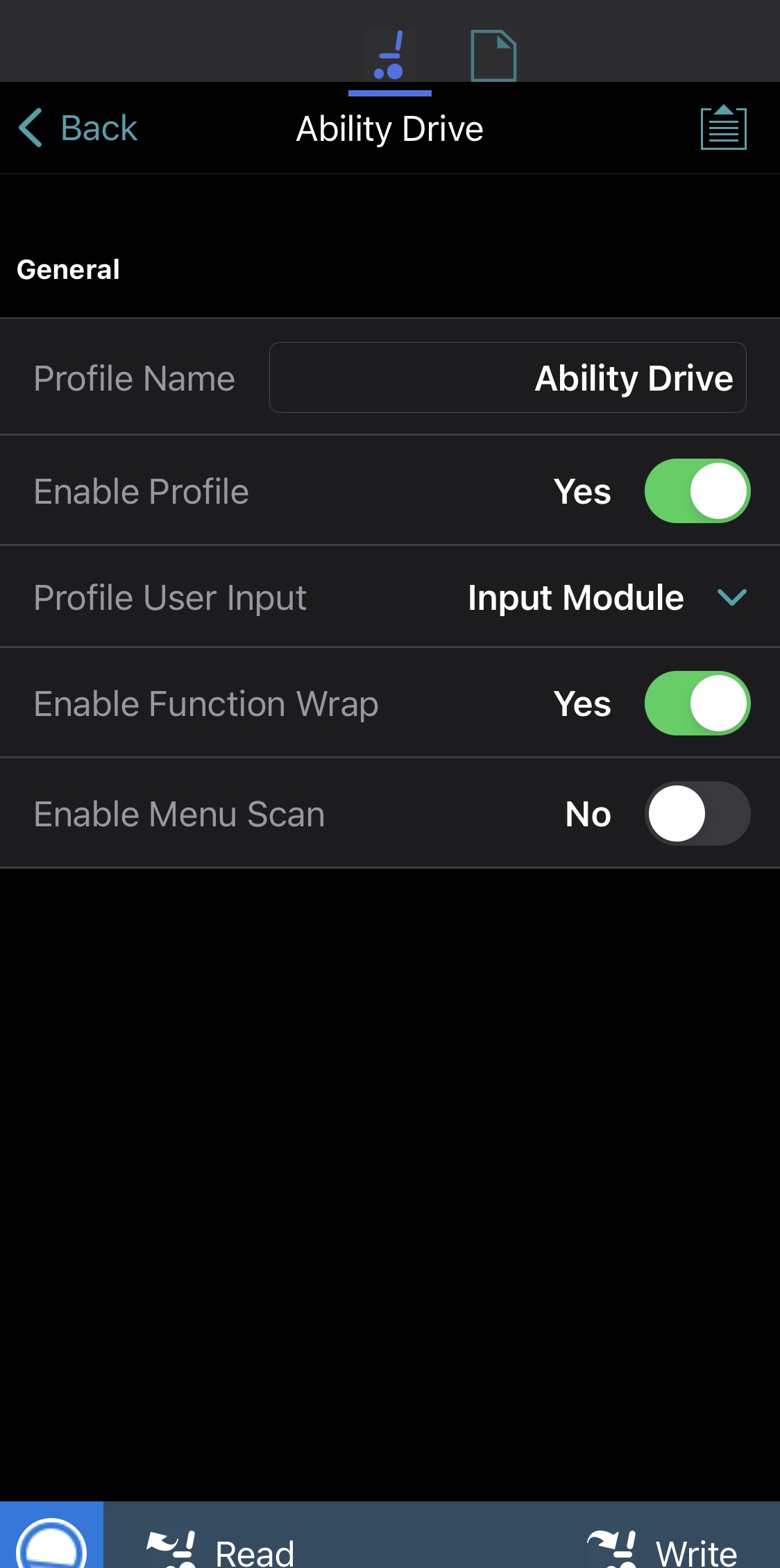
Under General
Set Enable Profile = Yes
Set Profile User Input = Input Module
Set Enable Function Wrap = Yes
Set Enable Menu Scan = No
Click Back.
Next, If applicable, create a Function for each of the seating functions you would like the client to access.
Under the Ability Drive Profile
Click Add Function

Set Name = Tilt
Select Function Type = Seating
Select User Input = IN 5xx

Select the Tilt Function
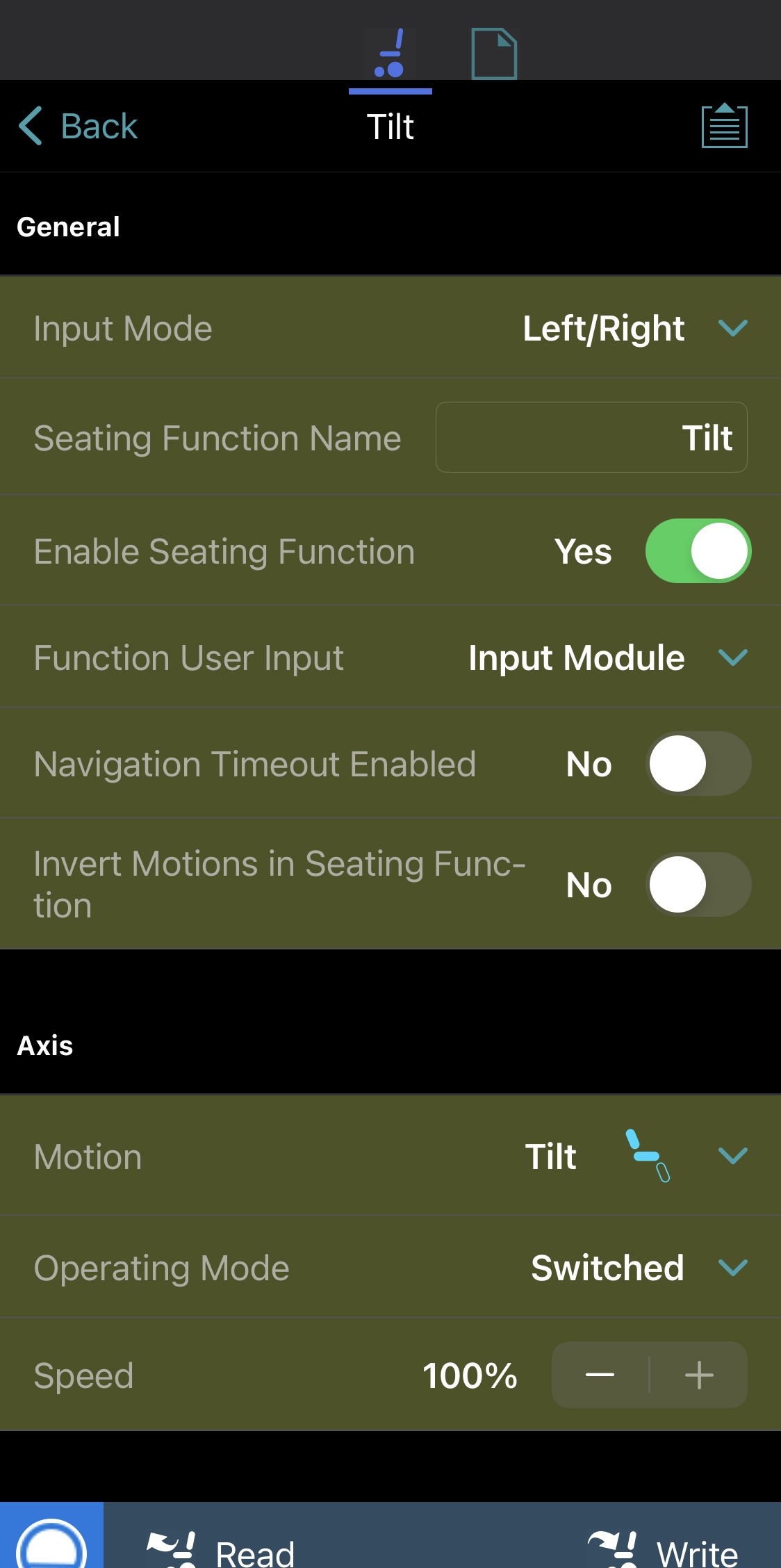
Under General
Set Input Mode = Left/Right
Set Seating Function Name = Tilt
Set Enable Seating Function = Yes
Set Function User Input = Input Module
Set Navigation Timeout Enabled = No
Set Invert Seating Function = No
Under Axis
Set Motion = Tilt
Set Operation Mode = Switched
Set Speed = 100%
(Using Tilt as an example, repeat Step 6 to create cards in the same manner for each desired seat function.)
Write the programming to the power-wheelchair.
Power on the chair using the REM 500 Display:
Select the Ability Drive profile
When safe to do so, open the Ability Drive app on the eye-gaze device to drive the power wheelchair.
Ensure the chair speeds, seating, and modes are configured and tested for the client's environment.