
This guide explains how to program both driving and seating modes for Ability Drive®. The Mode Switch to access seat functions is enabled in the Ability Drive® app and can be toggled On or Off from the settings screen. When the Mode Switch is set to On, the mode button (crossing arrows) will appear on the drive screen. ATPs must ensure that the OMNI 2 Display is mounted up next to the eye gaze device screen and in clear view of the Ability Drive® user.
Technical support is available Monday - Friday, 7:00am - 3:00pm PST. Please call (425)242-3902 or email support@tolttechnologies.com.
Video of Setup Using QuickConfig (Desktop)
Video of Setup Using QuickConfig (Mobile)
*A PDF of this guide can be found at the end of this article*
Permobil Programming Guide Using the QuickConfig App - One Profile
First, connect to the power wheelchair using the QuickConfig programming app.
Step 1: Go to the QuickConfig Dashboard:
Select Drive
Select Profiles
Select Profile 3
Toggle Enable profile to On
Change Profile 3 name to Ability Drive Indoor
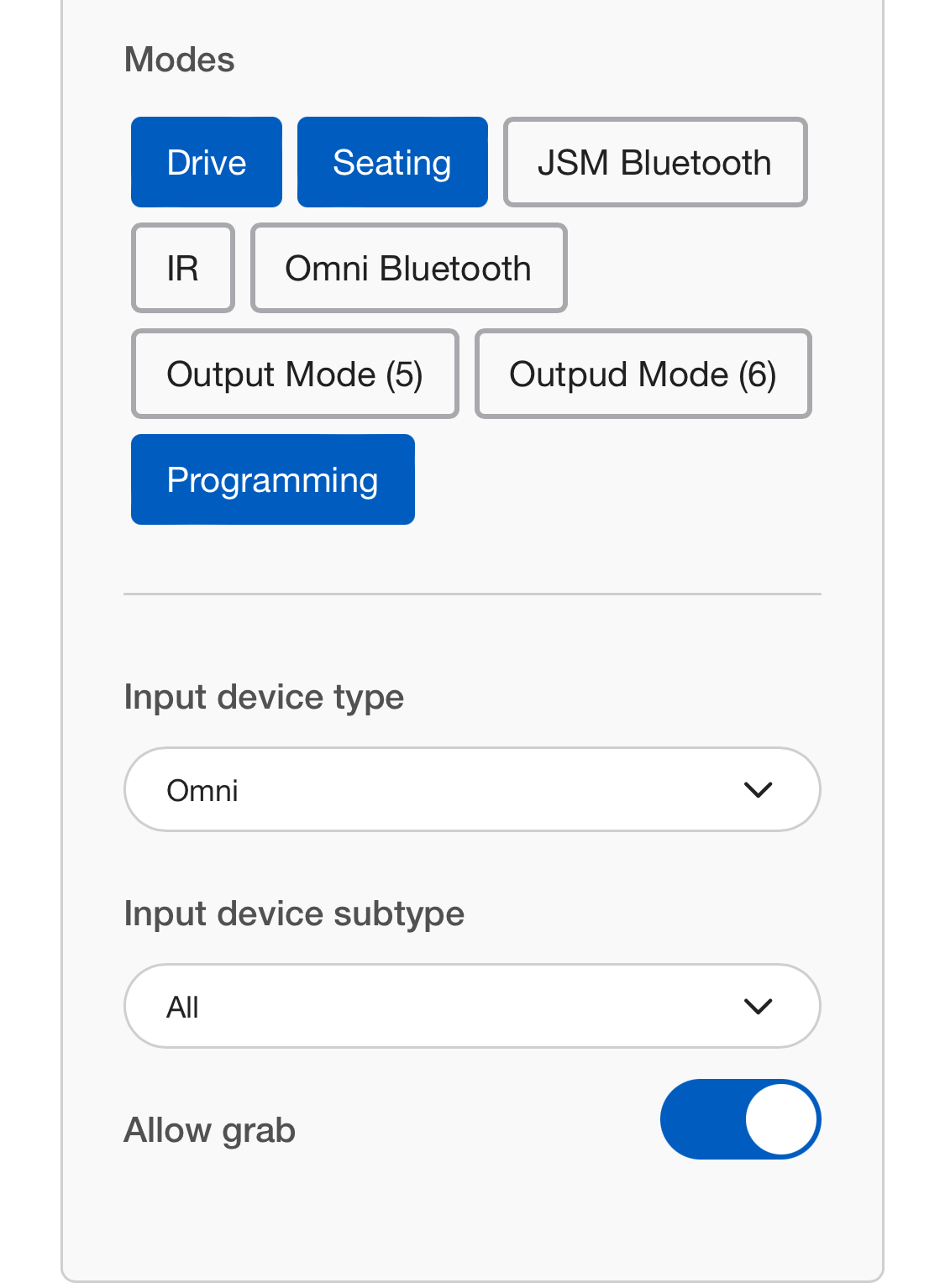
Under Modes
Turn on Drive, Seating, and Programming
Set Input device type to Omni
Set Input device subtype to All
Apply changes to the system.

Step 2: Go to the QuickConfig Dashboard:
Select Drive
Select OMNI2
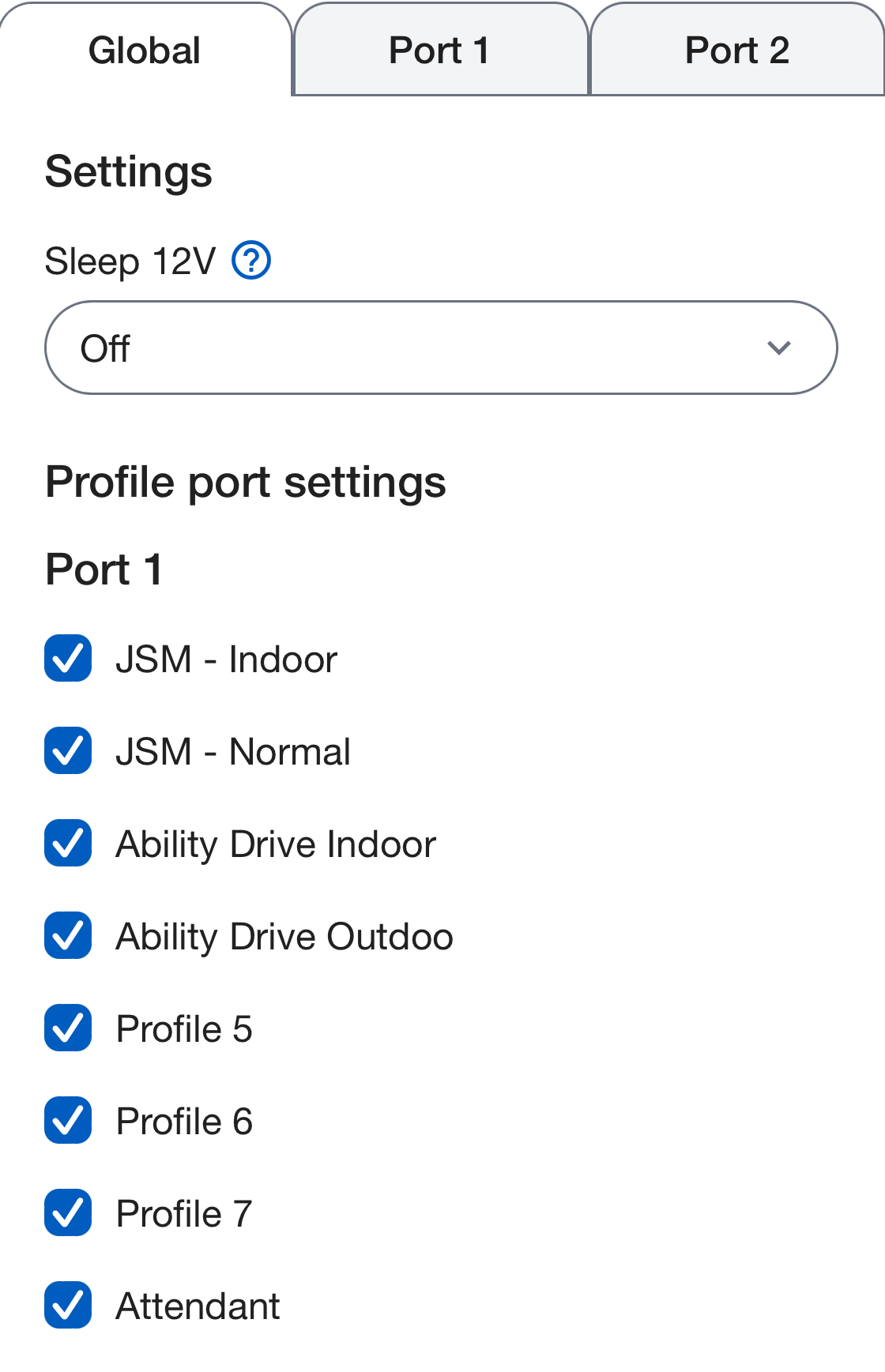
Select the tab for Global
Set Sleep 12V to Off
Check the box for Ability Drive Indoor
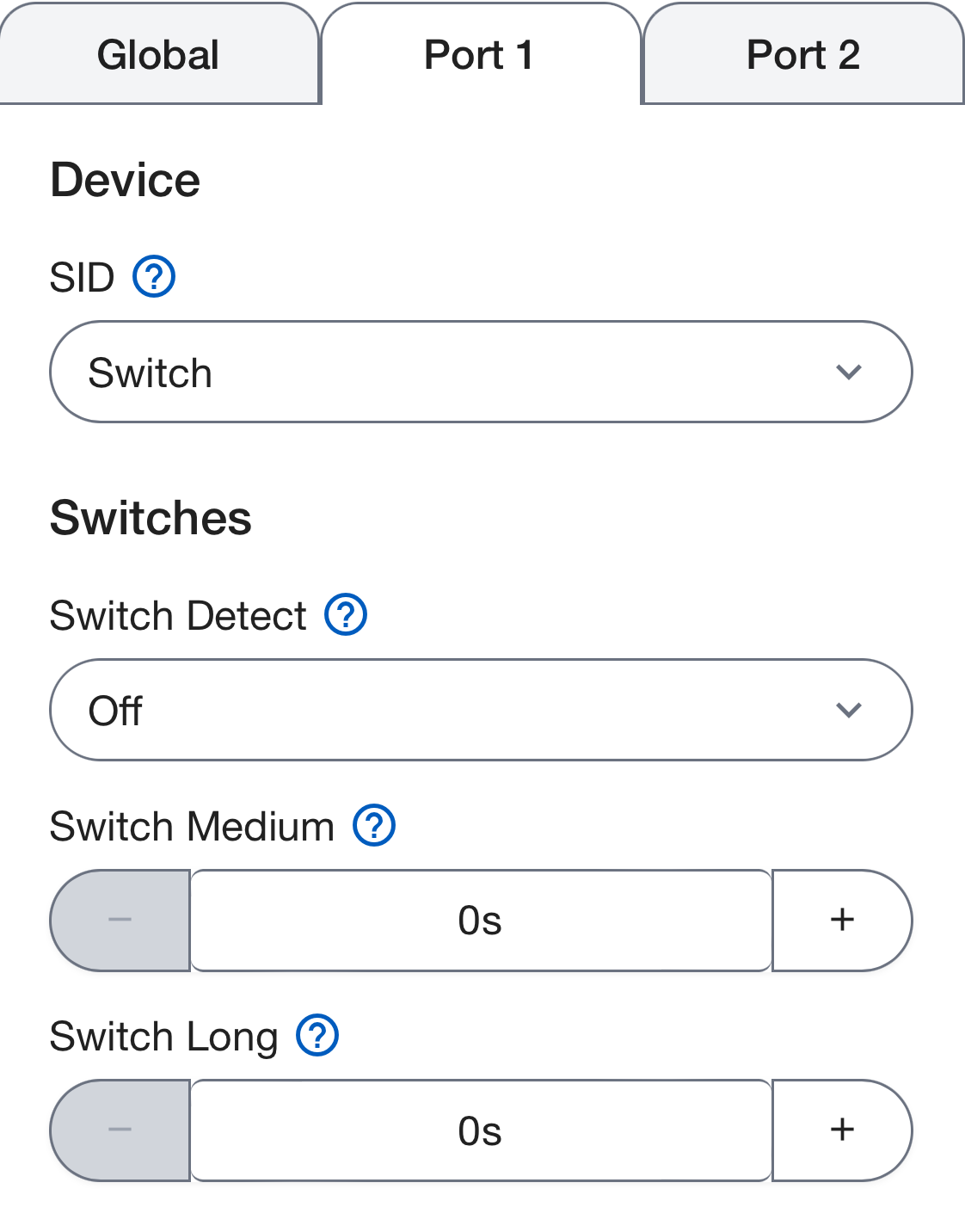
Select the tab for Port 1
Set SID to Switch
Set Switch Detect to Off
Set Switch Medium to 0s
Set Switch Long to 0s
Under User Menu
Set Position 1 to Drive and Entry
Set Position 2 to Seating and Entry
Set Positions 3 - 16 to Blank
(Optional) Set Position 3 to Speed Adjust and Entry)
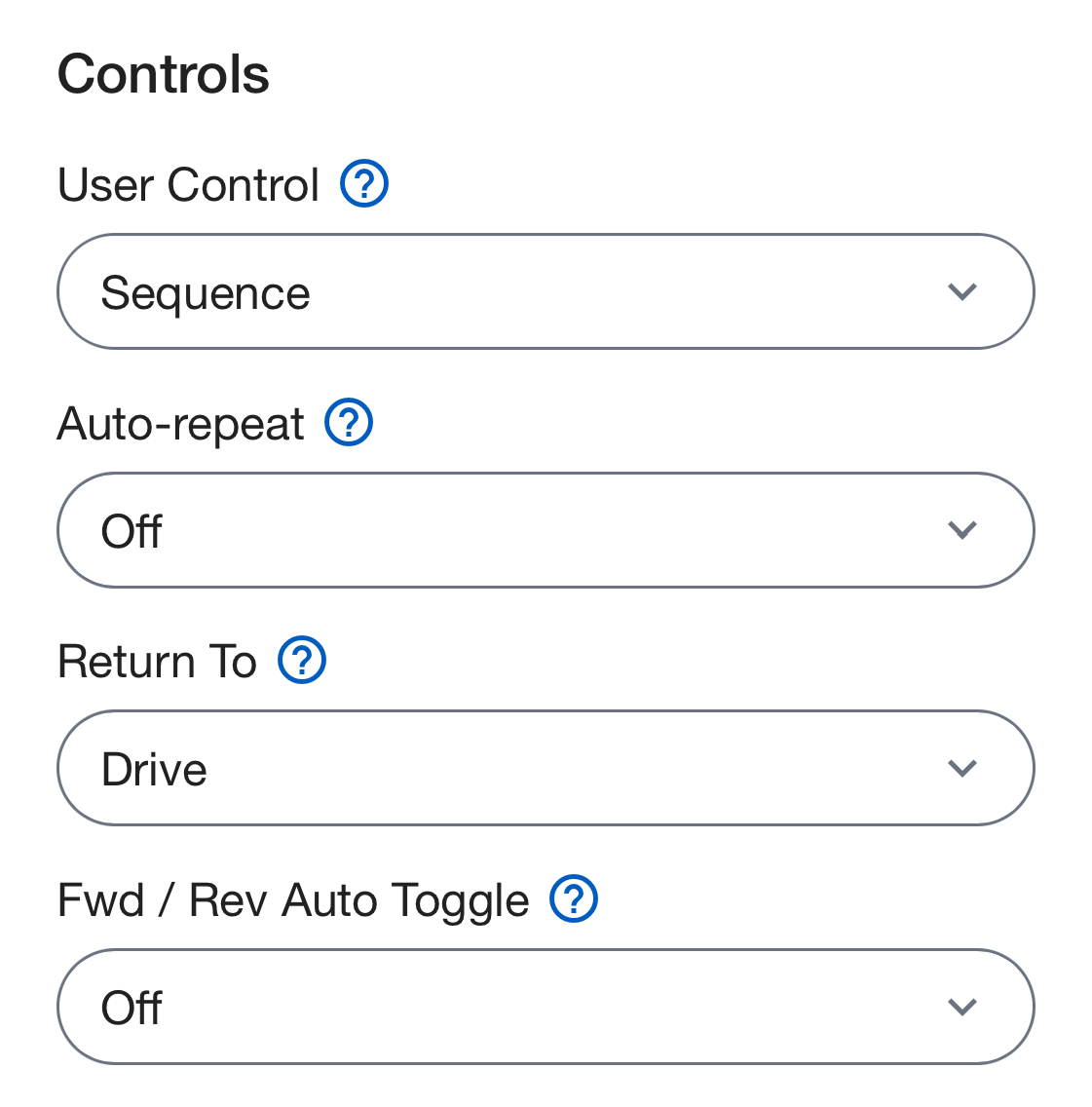
Under Controls
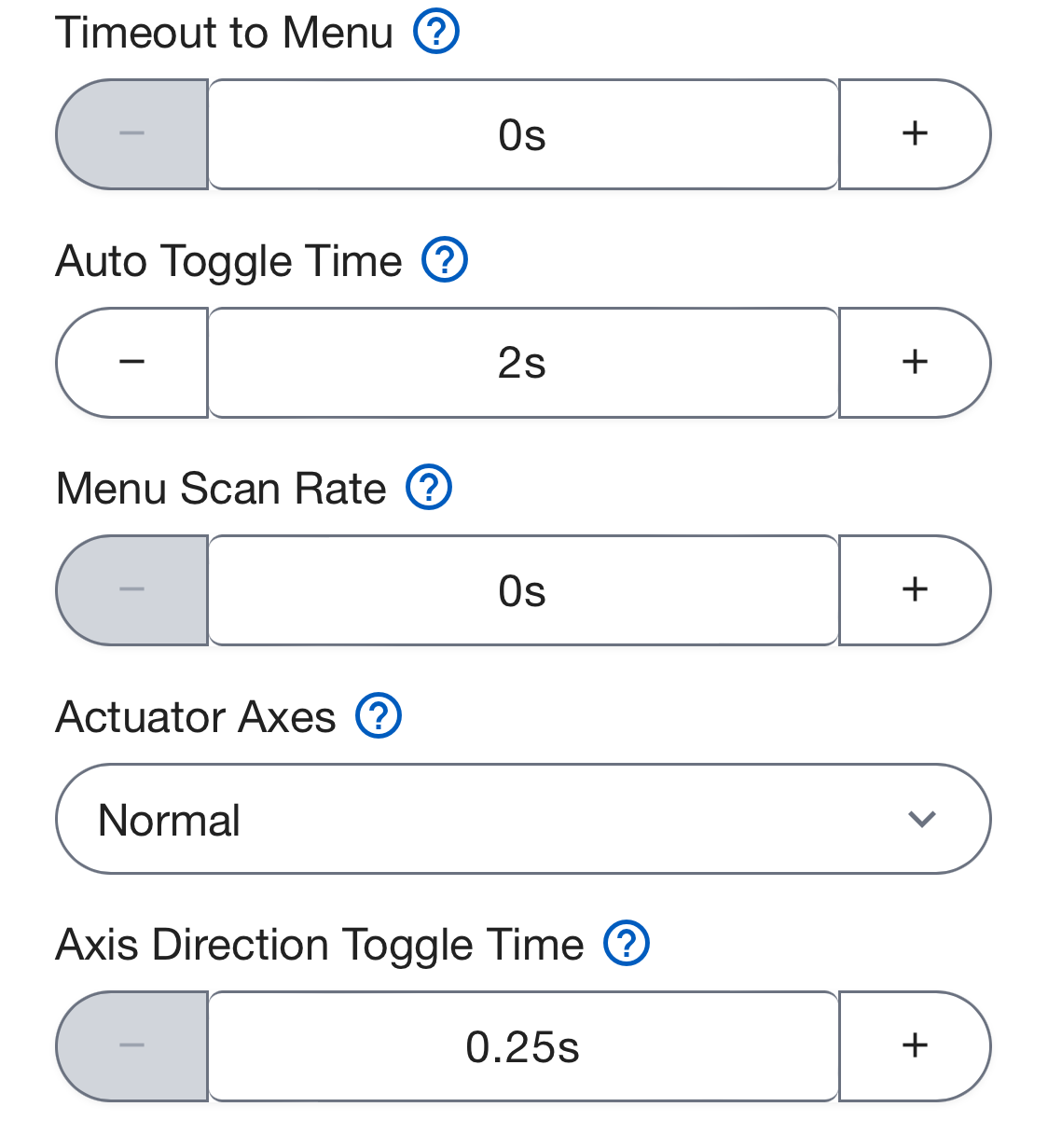
Set User Control to Sequence
Set Actuator Axes to Normal
Apply changes to the system.
Step 3: Go to the QuickConfig Dashboard:
Select Advanced Configuration
Select Drive System
Select Controls
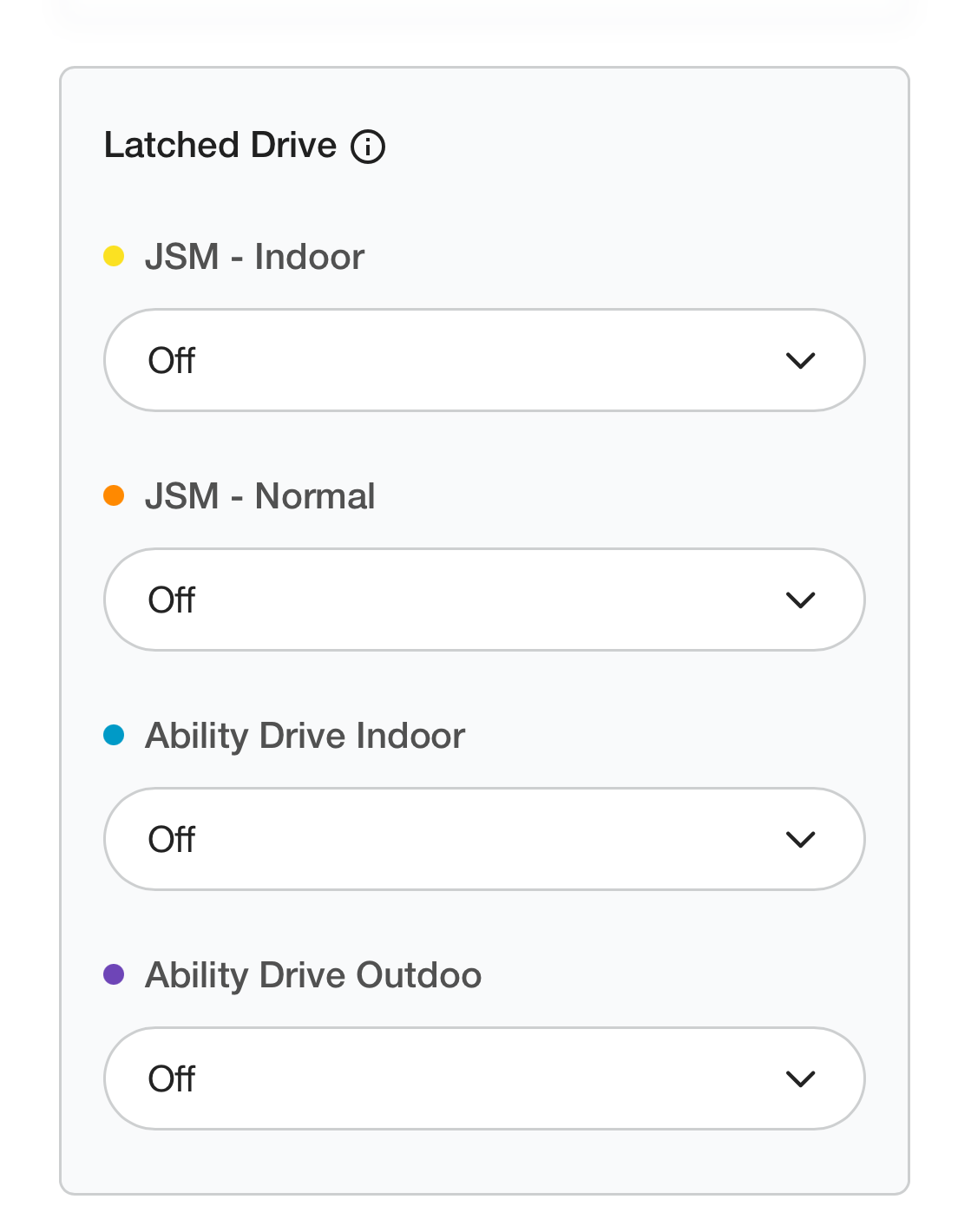
Under Latched Drive
Set Ability Drive Indoor to Off
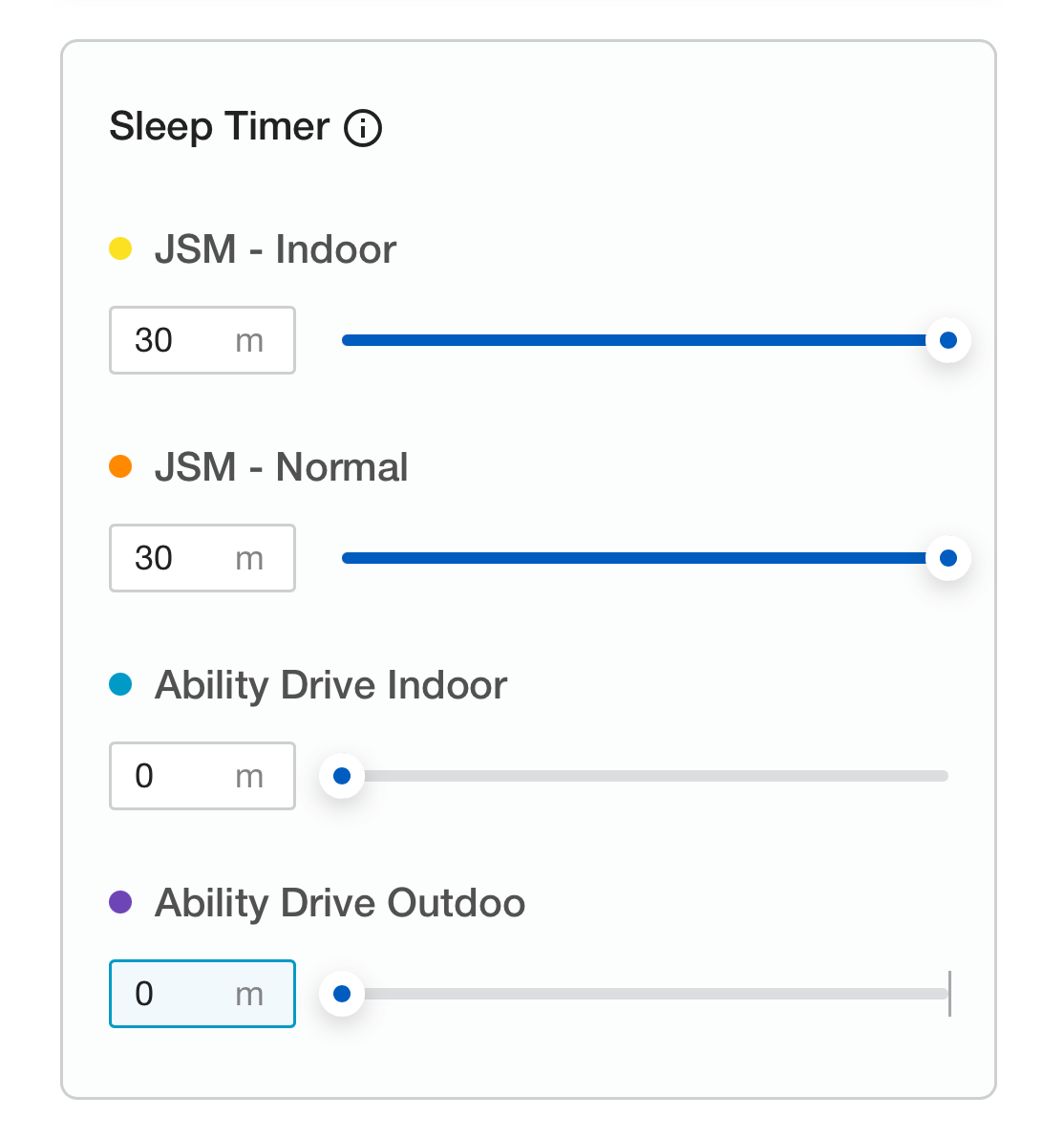
Under Sleep Timer
Set Ability Drive Indoor to 0
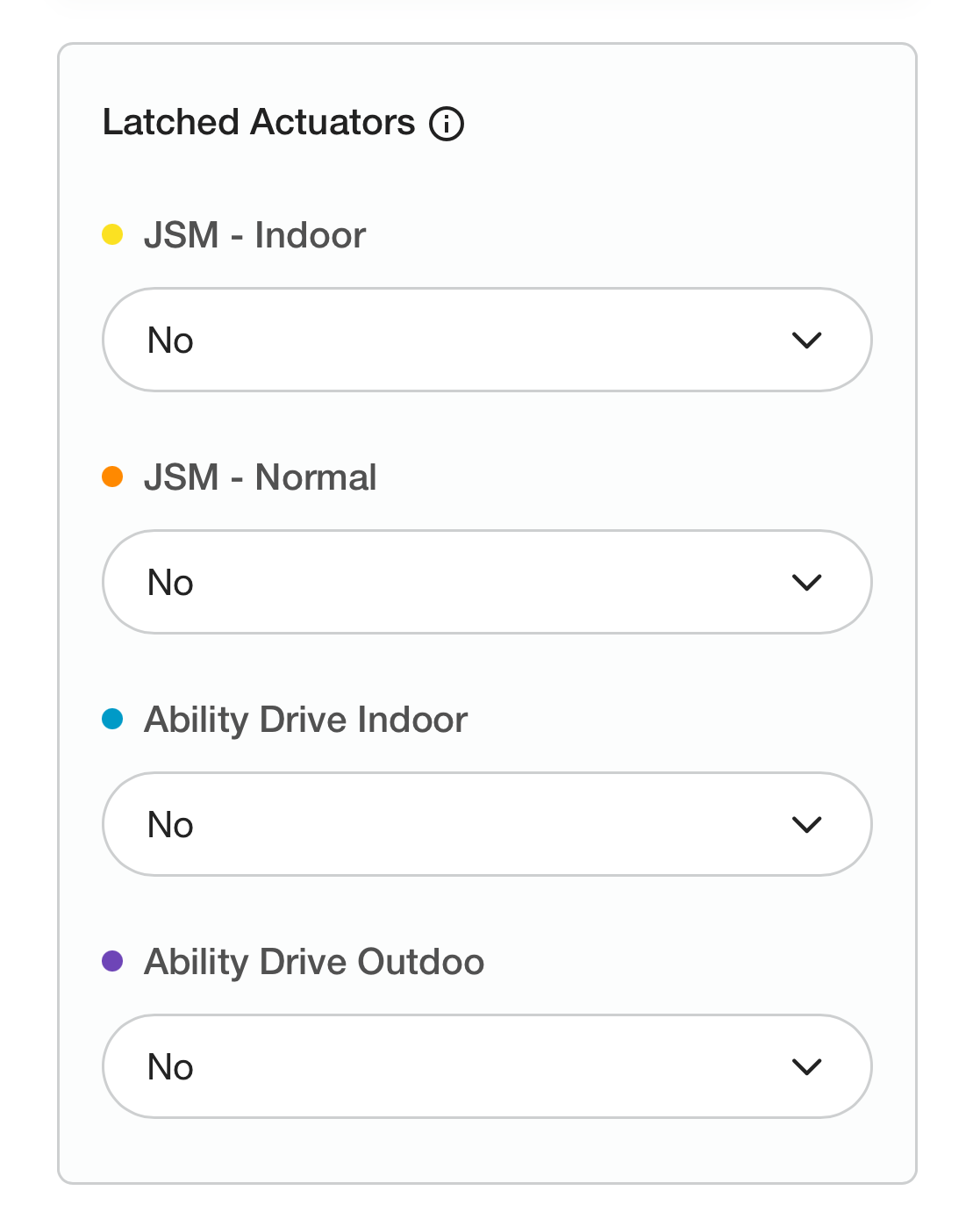
Under Latched Actuators
Set Ability Drive Indoor to No
Apply changes to the system.
Step 4: Power on the chair using the OMNI 2 Display:
Select Profile 3 for Ability Drive®
When safe to do so, open the Ability Drive app on the eye-gaze device to drive the power wheelchair.
Ensure the chair speeds, seating, and modes are configured and tested for the client's environment.
Permobil Programming Guide Using the QuickConfig App - Two Profiles
First, connect to the power wheelchair using the QuickConfig programming app.
Step 1: Go to the QuickConfig Dashboard:
Select Drive
Select Profiles
Select Profile 3
Change Profile 3 name to Ability Drive Indoor
Under Modes
Turn on Drive, Seating, and Programming
Set Input device type to Omni
Set Input device subtype to All
Apply changes to the system.
Select Drive
Select Profiles
Select Profile 4
Change Profile 4 name to Ability Drive Outdoor
Under Modes
Turn on Drive, Seating, and Programming
Set Input device type to Omni
Set Input device subtype to All
Apply changes to the system.
Step 2: Go to the QuickConfig Dashboard:
Select Drive
Select OMNI2
Select the tab for Global
Set Sleep 12V to Off
Check the box for Profile 3 Ability Drive Indoor
Check the box for Profile 4 Ability Drive Outdoor
Select the tab for Port 1
Set SID to Switch
Set Switch Detect to Off
Set Switch Medium to 0s
Set Switch Long to 0s
Under User Menu
Set Position 1 to Drive and List
Set Position 2 to Seating and Entry
Set Positions 3 - 16 to Blank
(Optional) Set Position 3 to Speed Adjust and Entry
Under Controls
Set User Control to Sequence
Set Actuator Axes to Normal
Apply changes to the system.
Step 3: Go to the QuickConfig Dashboard:
Select Advanced Configuration
Select Drive System
Select Controls
Under Latched Drive
Set Ability Drive Indoor to Off
Set Ability Drive Outdoor to Off
Under Sleep Timer
Set Ability Drive Indoor to 0
Set Ability Drive Outdoor to 0
Under Latched Actuators
Set Ability Drive Indoor to No
Set Ability Drive Outdoor to No
Apply changes to the system.
Step 4: Power on the chair using the OMNI 2 Display:
Select Profile 3 or 4 for Ability Drive®
When safe to do so, open the Ability Drive app on the eye-gaze device to drive the power wheelchair.
Ensure the chair speeds, seating, and modes are configured and tested for the client's environment.