
This article gives an overview of the Ability Drive® iOS app, its function, and settings.
Demonstration Video: Ability Drive® for iOS - App Overview (Coming soon...)
Installing the App
The Ability Drive® app is available to download from
App Drive Screen
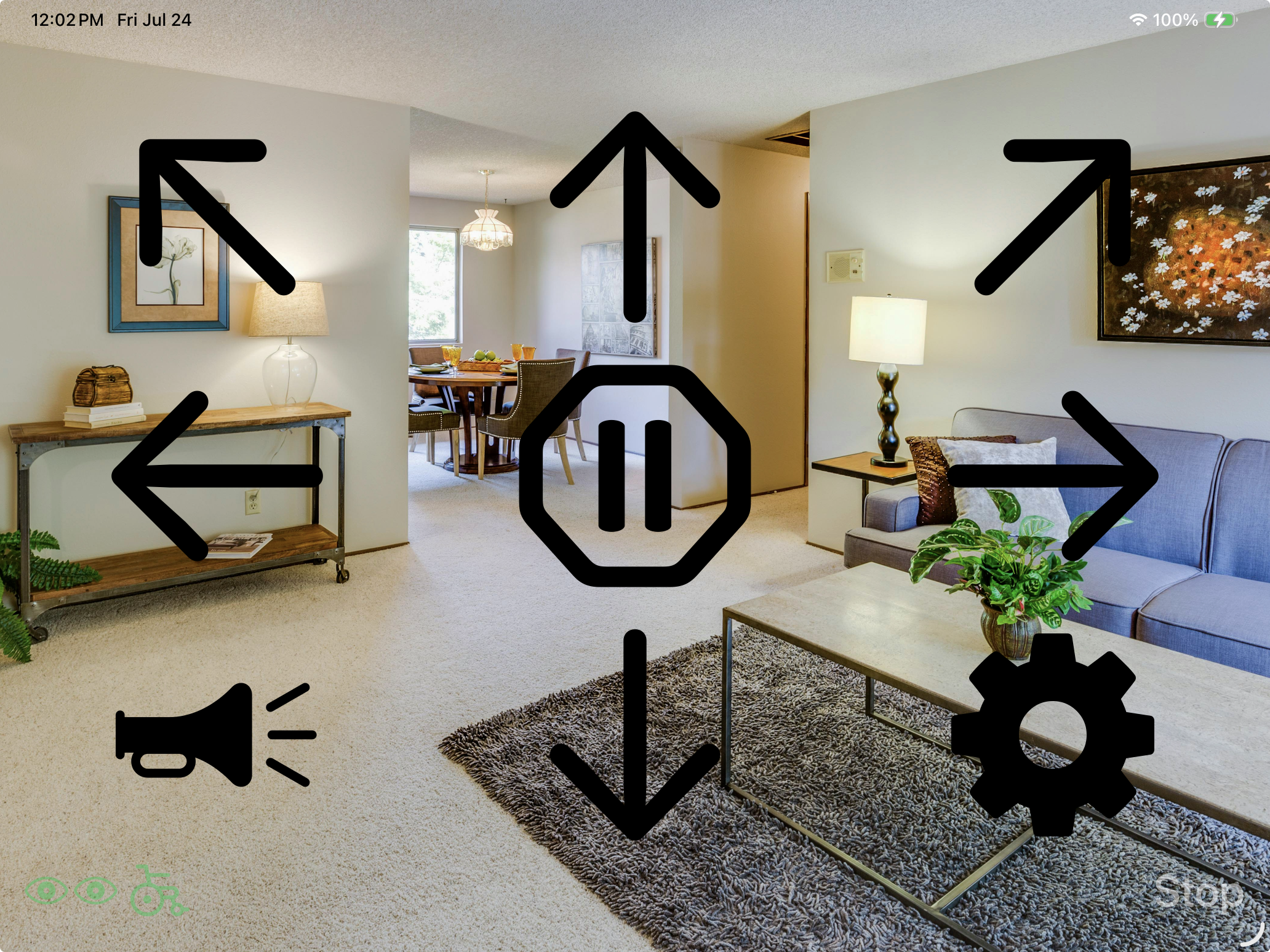
When the app opens, it automatically starts in the drive screen, which provides a forward-facing computer view with a semi-transparent button overlay.
Driving the Power Wheelchair
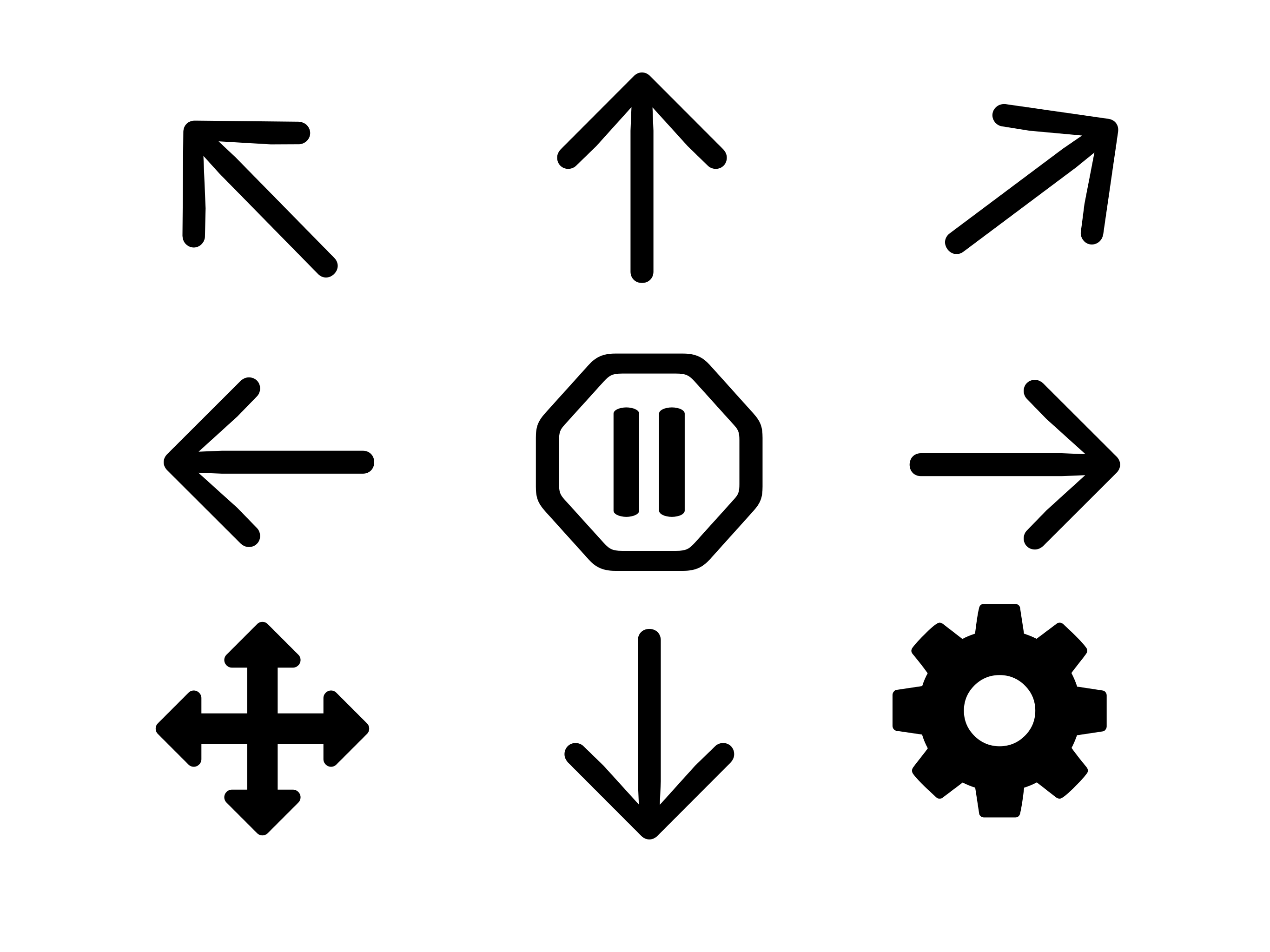
To drive, look at the arrow in the direction you would like to move. Drive arrows, when looked at, turn purple and activate instantaneously. Note: the chair will drive at a speed determined by its power wheelchair programming.
Stopping the Power Wheelchair
There are 5 ways to stop the power wheelchair:
1. Close your eyes.
2. Look off screen.
3. Look in the margins between the buttons.
4. Look at the pause button, or any non-drive button.
5. Press the buddy button (functional switch) to power off the power wheelchair.
Pause, User Button, and Settings
There are 3 non-drive buttons on the drive screen:
1. Stop and Pause - To stop the chair, look at the stop sign. The stop command is sent immediately. To activate Pause, continue to dwell on the stop sign for the duration of the Dwell Time. Pause remains purple and disables the drive buttons. To unpause, look at the stop sign again for the duration of the Dwell Time.

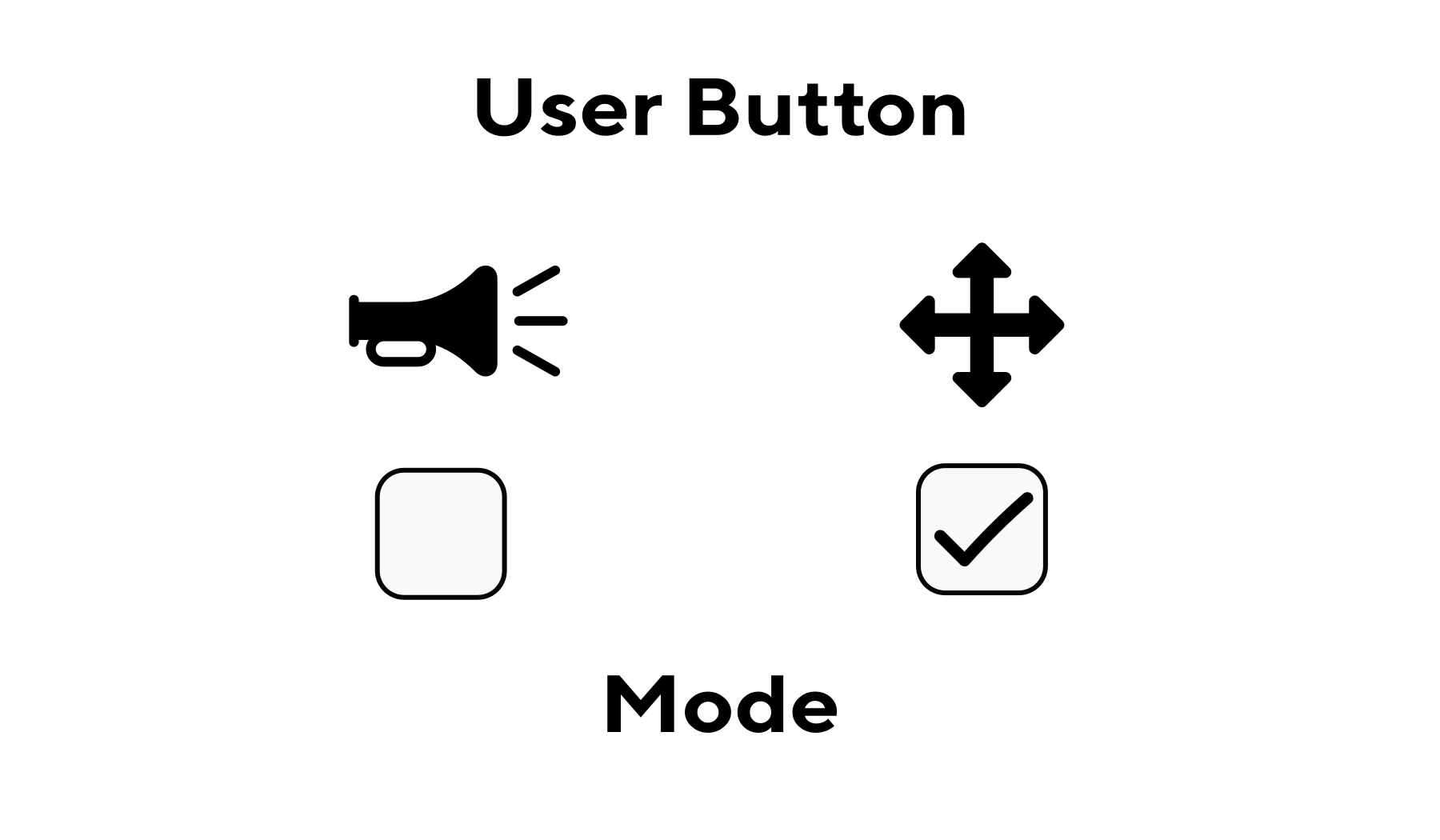
2. User Button - The User button can be configured in Settings to either select the Mode on the power wheelchair (4 crossing arrows) or sound the Horn. Dwell on the User Button for the duration of the Dwell Time to activate it.


3. Settings - The Settings button (gear icon) accesses the Settings menu. Dwell on it for the duration of the Dwell Time to activate it.

Status Symbols
There are 2 status icons in the lower-left-corner of the screen:
Eye-Tracker and Eyes-Seen
If the eye-tracker is connected and can see the user's eyes, the eyes symbol will appear green. If they eye-tracker is connected, but cannot see the user's eyes, the eyes symbol will appear green with slashes.
 If the eye-tracker is not connected, the eyes symbol will appear yellow.

ADT Connected or Disconnected
If the ADT is Connected, the wheelchair symbol will appear green.

If the ADT is Disconnected the wheelchair symbol will appear yellow.

App Settings Screen
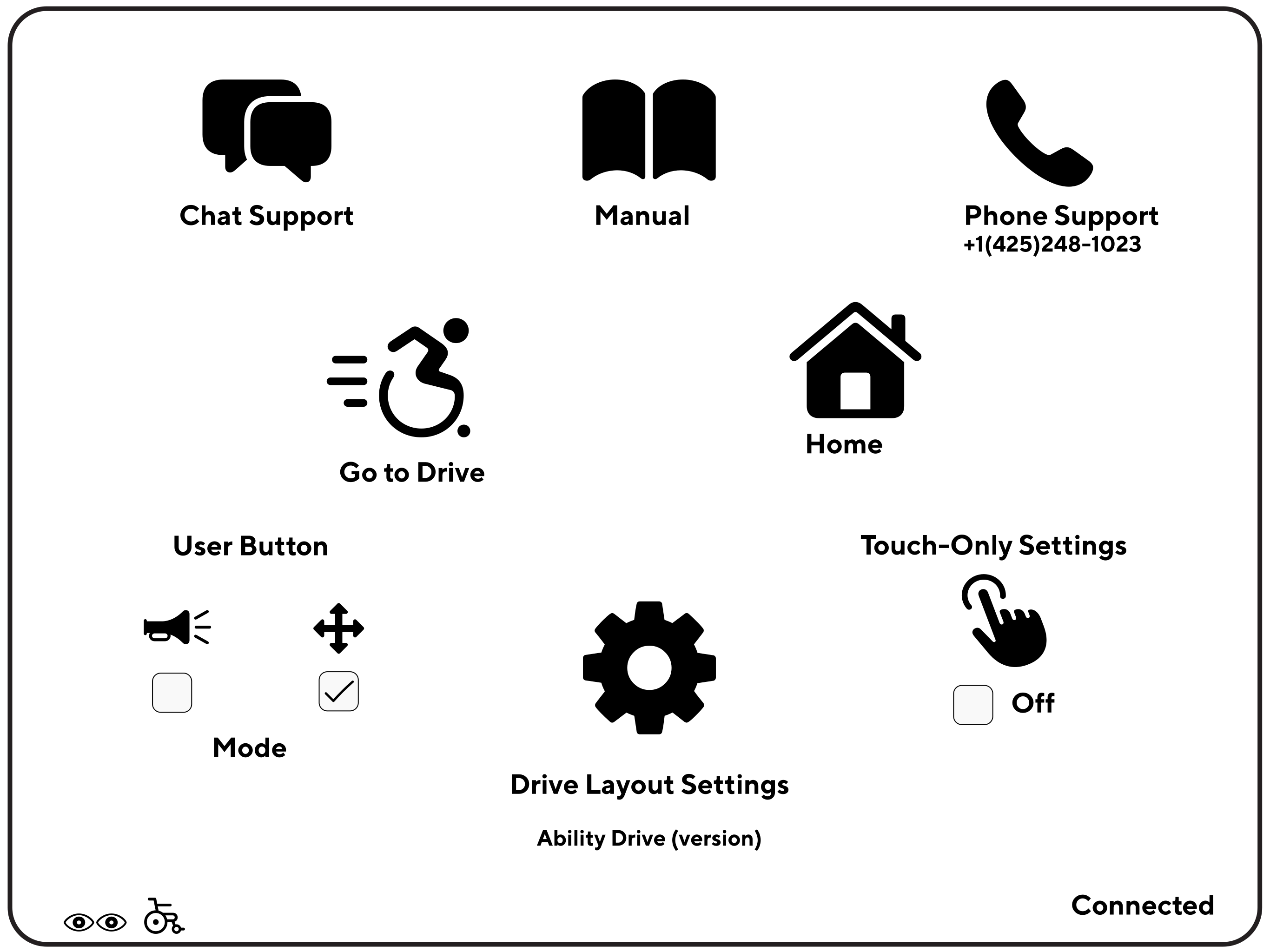
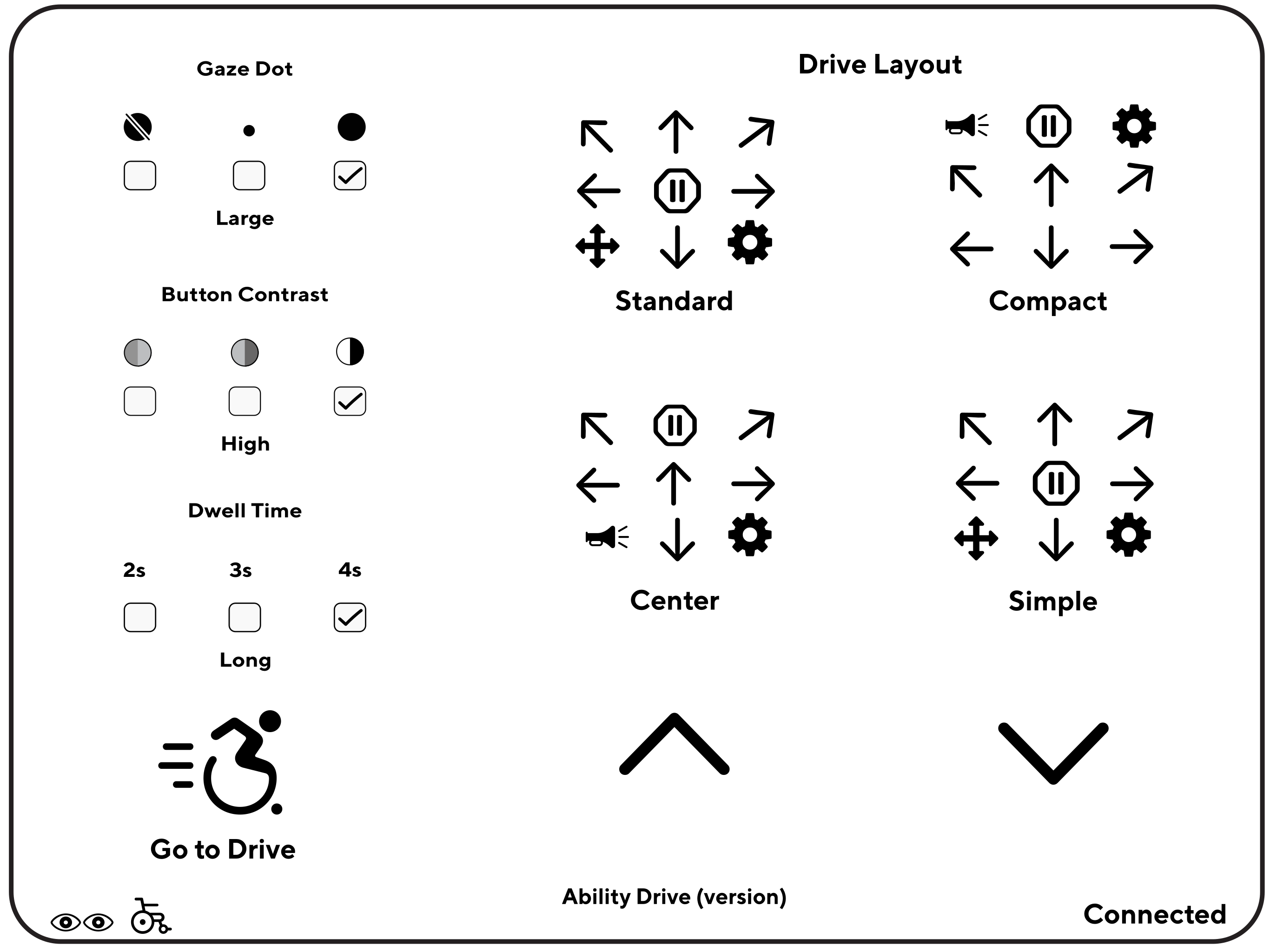
The Settings screen allows users to change settings that impact the Drive screen, exit the app, and get support.
User Button
Users can toggle between Horn and Mode. Whichever is selected will appear on the Drive screen.
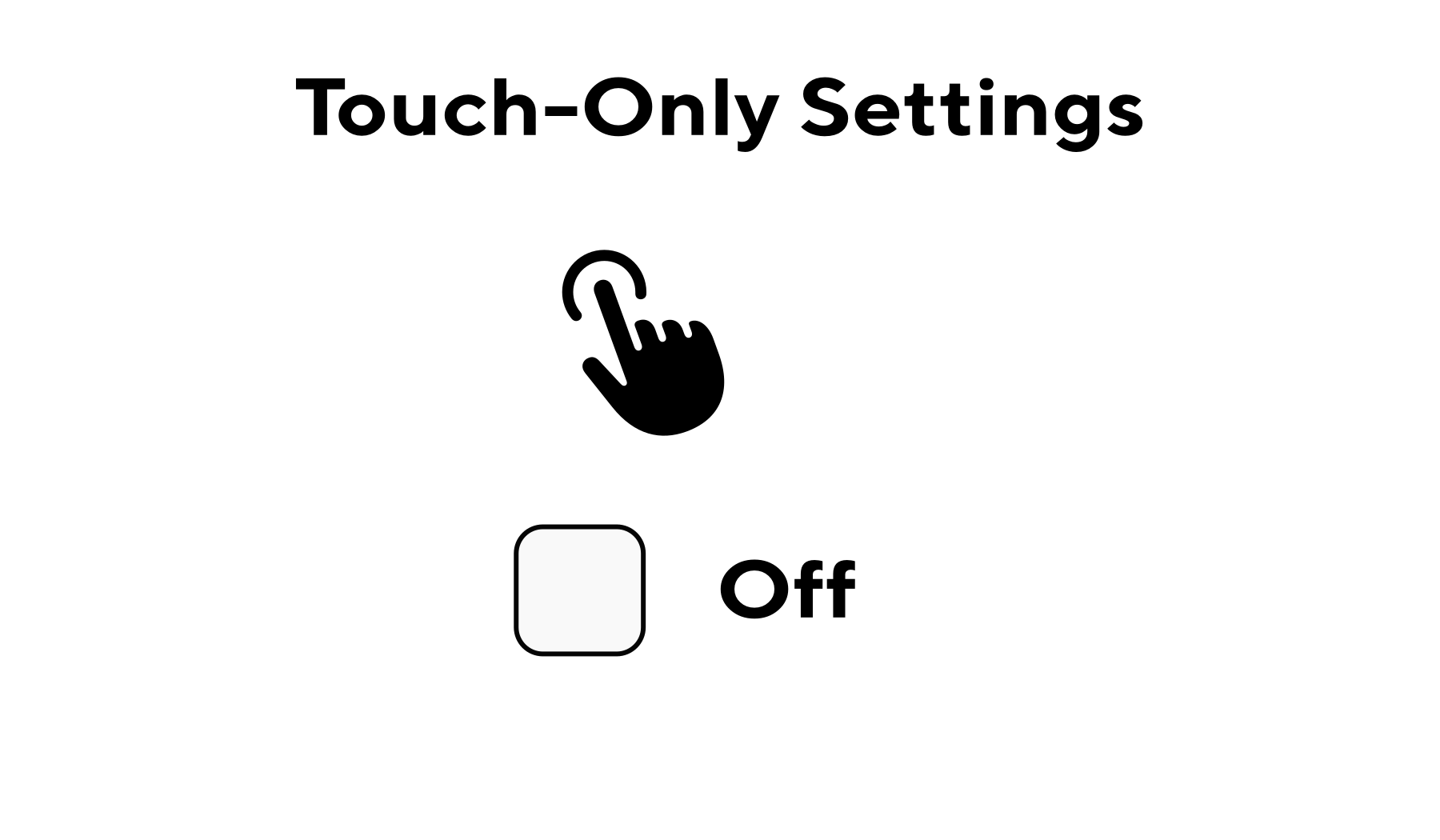
Touch-Only Settings
When turned On, all non-drive buttons can only be activated using touch, not by eye-gaze. This setting impacts both the Drive screen and the Settings menu and can only be enabled or disabled using touch.
App Drive Layout Settings Screen
Users can select from 7 Drive Layouts and make changes to the Gaze Dot, Button Contrast, and Dwell Time.
Gaze Dot
The Gaze Dot indicates where the eye-tracker detects the user is looking on the screen. Users can toggle between three settings: Off, Small, and Large. Note: the calibration of the eye-tracker is done in the Eyetuitive or Hiru app.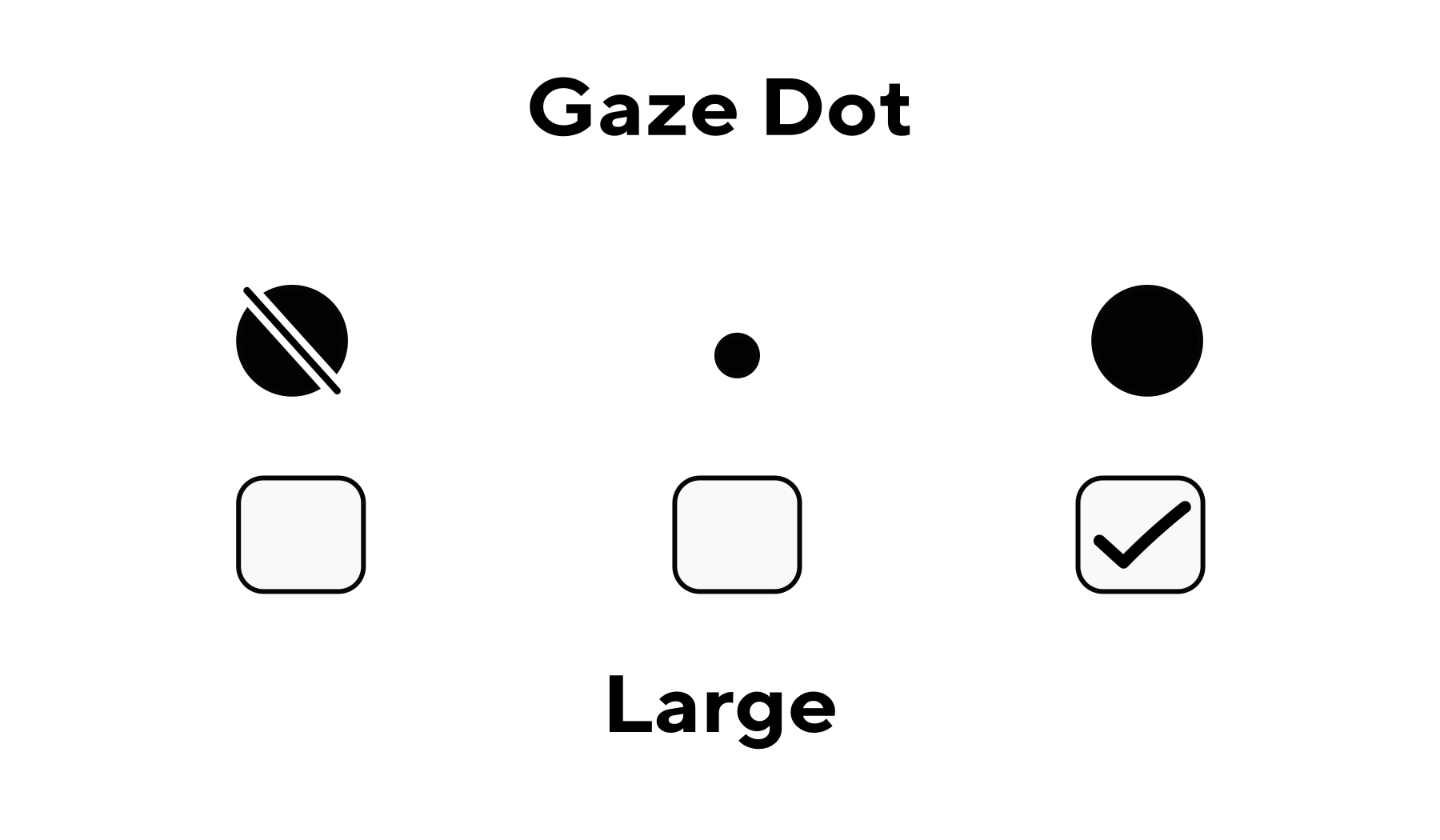
Button Contrast
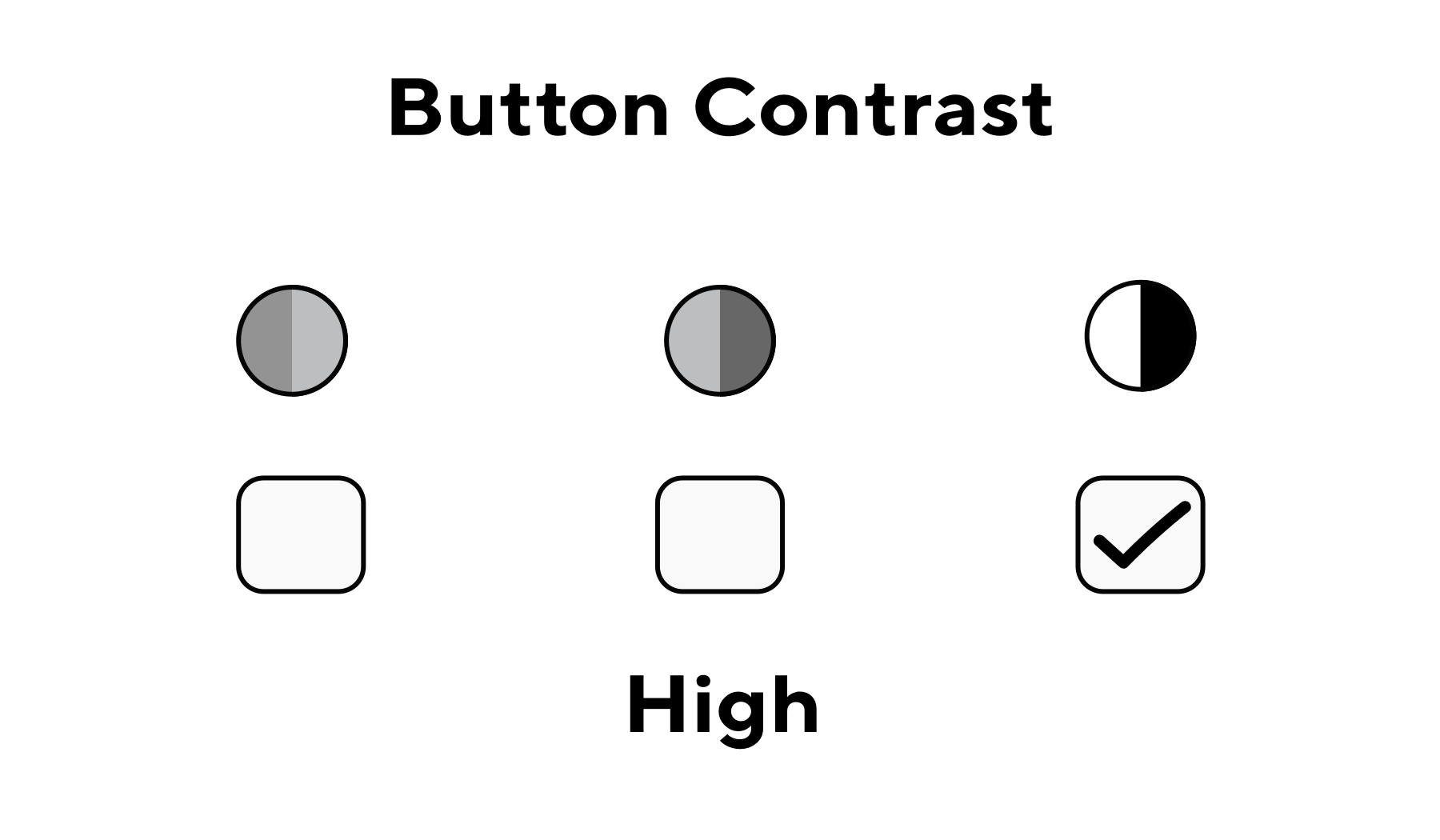
Contrast adjusts the transparency of the Drive screen buttons. Users can toggle between three settings: Low, Medium, and High. The lightest Contrast setting is Low. The darkest setting is High (buttons will appear black).
Dwell Time
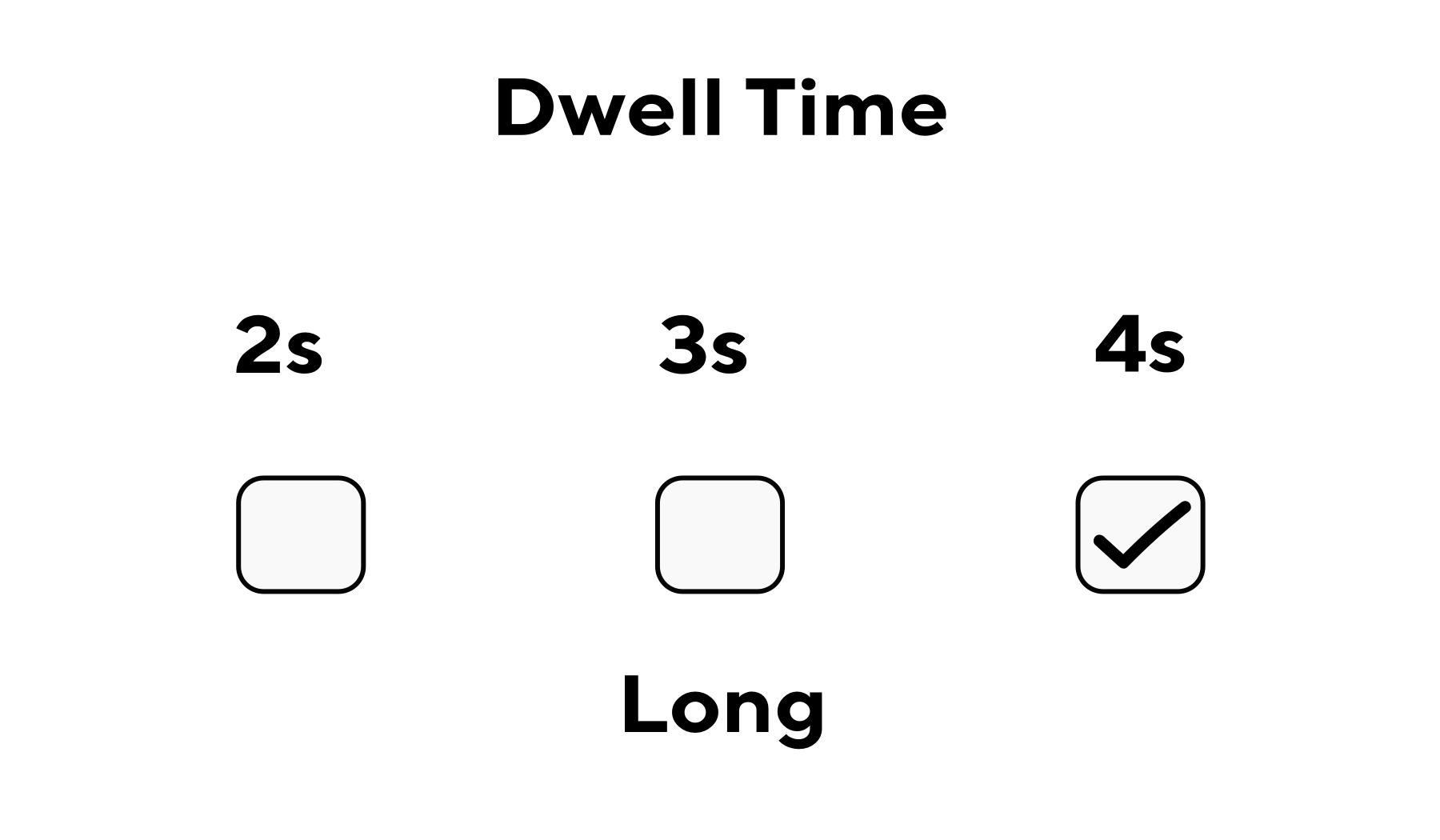
The Dwell Time adjusts the amount of time required to look at any non-drive button in order to activate it. Users can toggle between three settings: Short (2 seconds), Medium (3 seconds), and Long (4 seconds).
Drive Layout
The Drive Layout provides 7 options for drive button placement on the Drive screen. Users can arrow up or down and choose between: Standard, Compact, Center, Simple, Simple Forward, Simple Left-Right, and Column.
 Standard Drive Layout
Go to Drive
Returns the user to the Drive screen.

Home
Exits the app and returns the user to the iPad Home screen.

Chat Support
Accesses the Tolt Technologies Customer Chat to reach technical support or connect with other Ability Drive users.

Manual
Opens a online PDF version of the Ability Drive manual.

Next: How to Start Ability Drive - Eyetuitive
Technical support is available Monday - Friday, 7:00am - 3:00pm PST. Please call (425)242-3902 or email support@tolttechnologies.com.