
This article shows how to perform an eye-tracker calibration with the GazeFirst eye-tracker and Eyetuitive app.
Demonstration Video: How to Calibrate - Eyetuitive (Coming soon...)
Step 1:
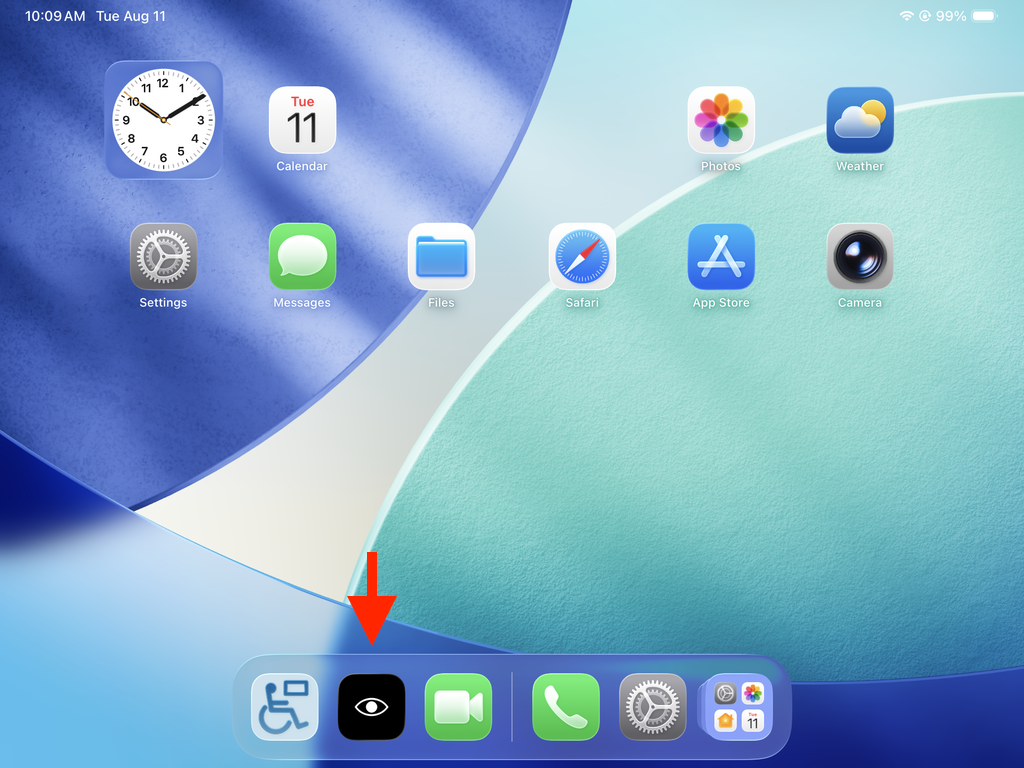
From the iPad Home Screen, click on the Eyetuitive app.
Step 2:
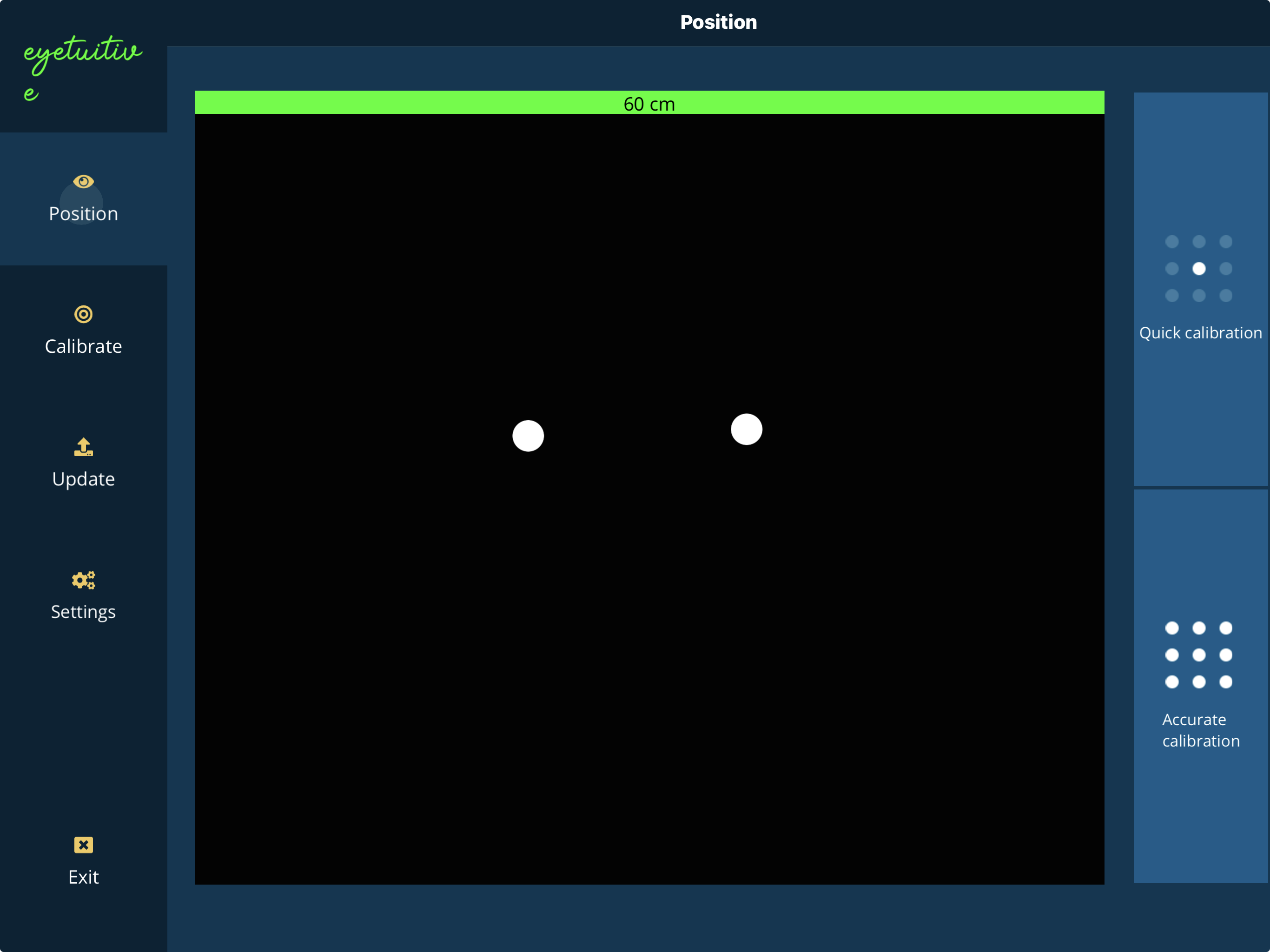
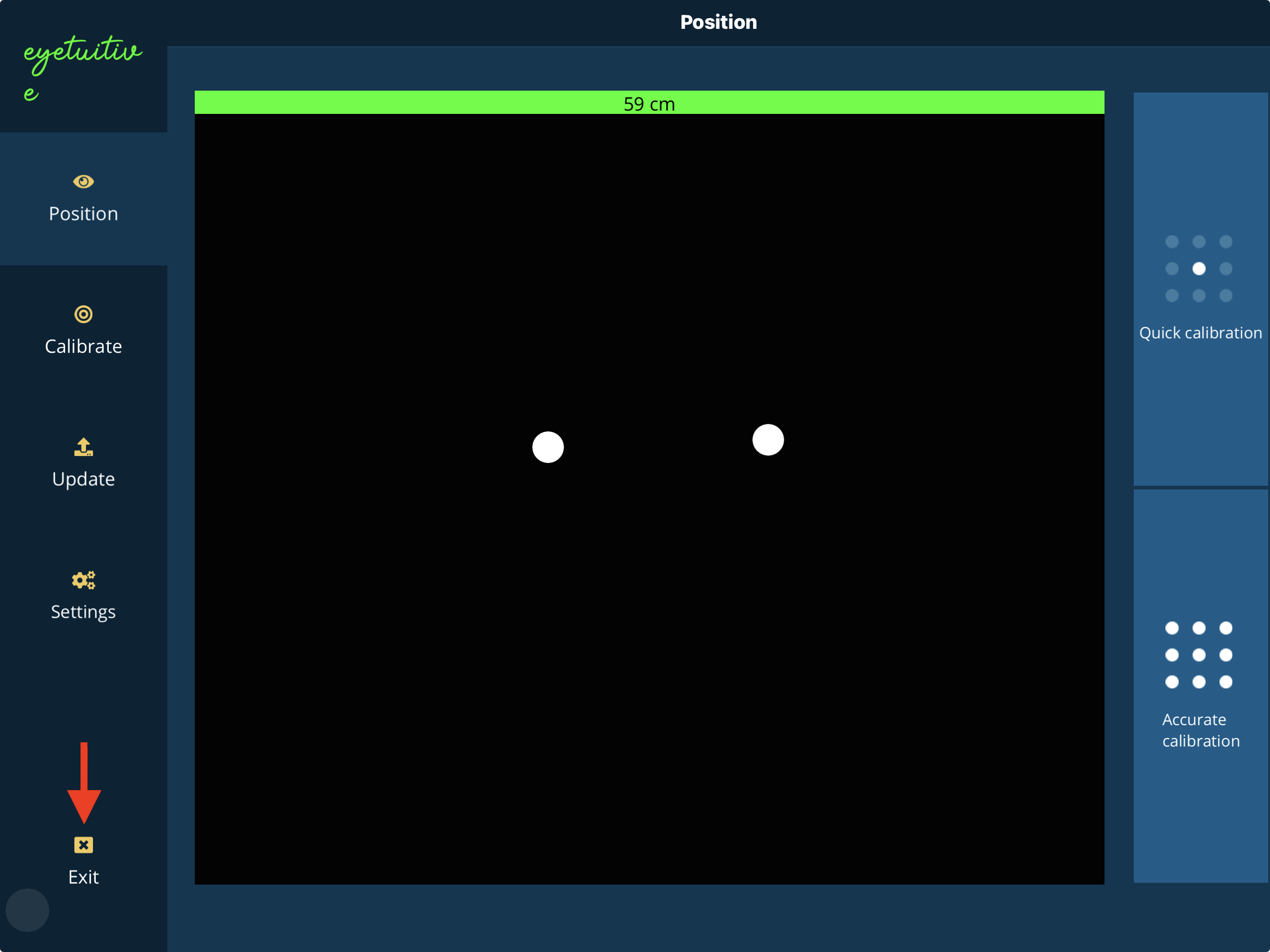
In the Eyetuitive positioning guide, ensure your eyes appear centered with the eye-tracker 20 to 24 inches away.
Step 3:
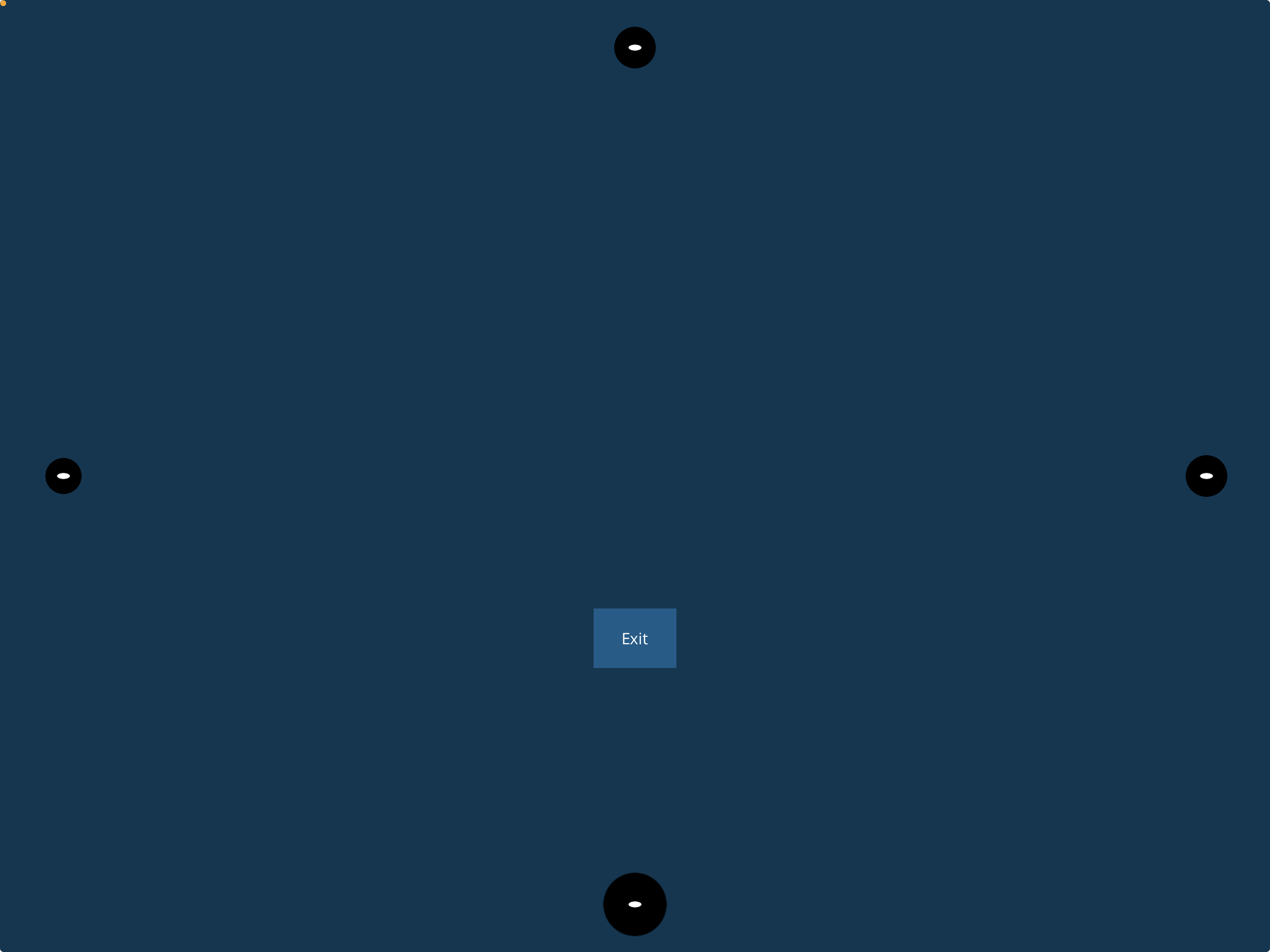
Click Calibrate, and look at the targets until they pop and disappear in the different areas of the screen.
Step 4:
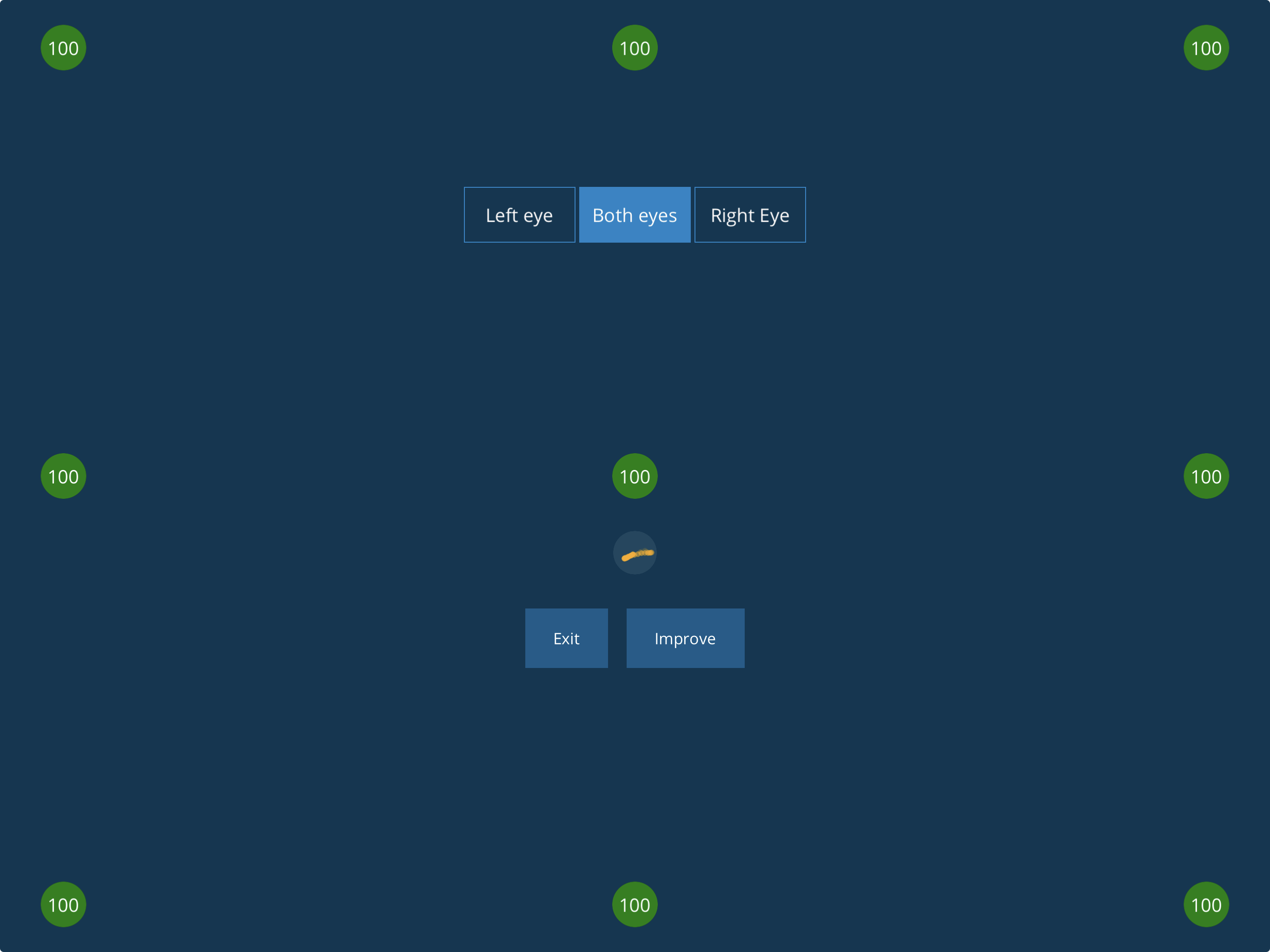
When the calibration is complete, the results will appear on screen, showing the quality of the calibration.
Step 5:
If you are satisfied with the calibration results, click Exit.
You have now completed the eye tracker calibration that will be used when running Ability Drive®.
Next: How to Start Ability Drive - Eyetuitive
Previous: Ability Drive® for iOS - App Overview
Technical support is available Monday - Friday, 7:00am - 3:00pm PST. Please call (425)242-3902 or email support@tolttechnologies.com.