
This article explains what AssistiveTouch is and how to use each button on the A13I AssistiveTouch menu.
Demonstration Video: How to Use AssistiveTouch (Coming soon...)
What Is AssistiveTouch?
AssistiveTouch is the iPad's computer control for eyegaze users.
The Eyetuitive app tells the iPad where you are looking. AssistiveTouch is what turns that gaze point into an actual tap, scroll, or button press. Without AssistiveTouch, the eye-tracker can see your eyes but cannot do anything with them.
The Pointer: A grey circle that follows your gaze around the screen. On the A13I, it will also snap onto nearby buttons and icons, so you do not have to land on them perfectly.

Dwell Control: Holding your gaze still on something for 1.5 seconds performs an action, no button press needed. A ring or frame closes around the target as it counts down.

AssistiveTouch Button: A floating dark square with a white circle inside, parked on the edge of the screen.

It fades when you are not using it but never disappears. Dwelling on it opens the AssistiveTouch menu.
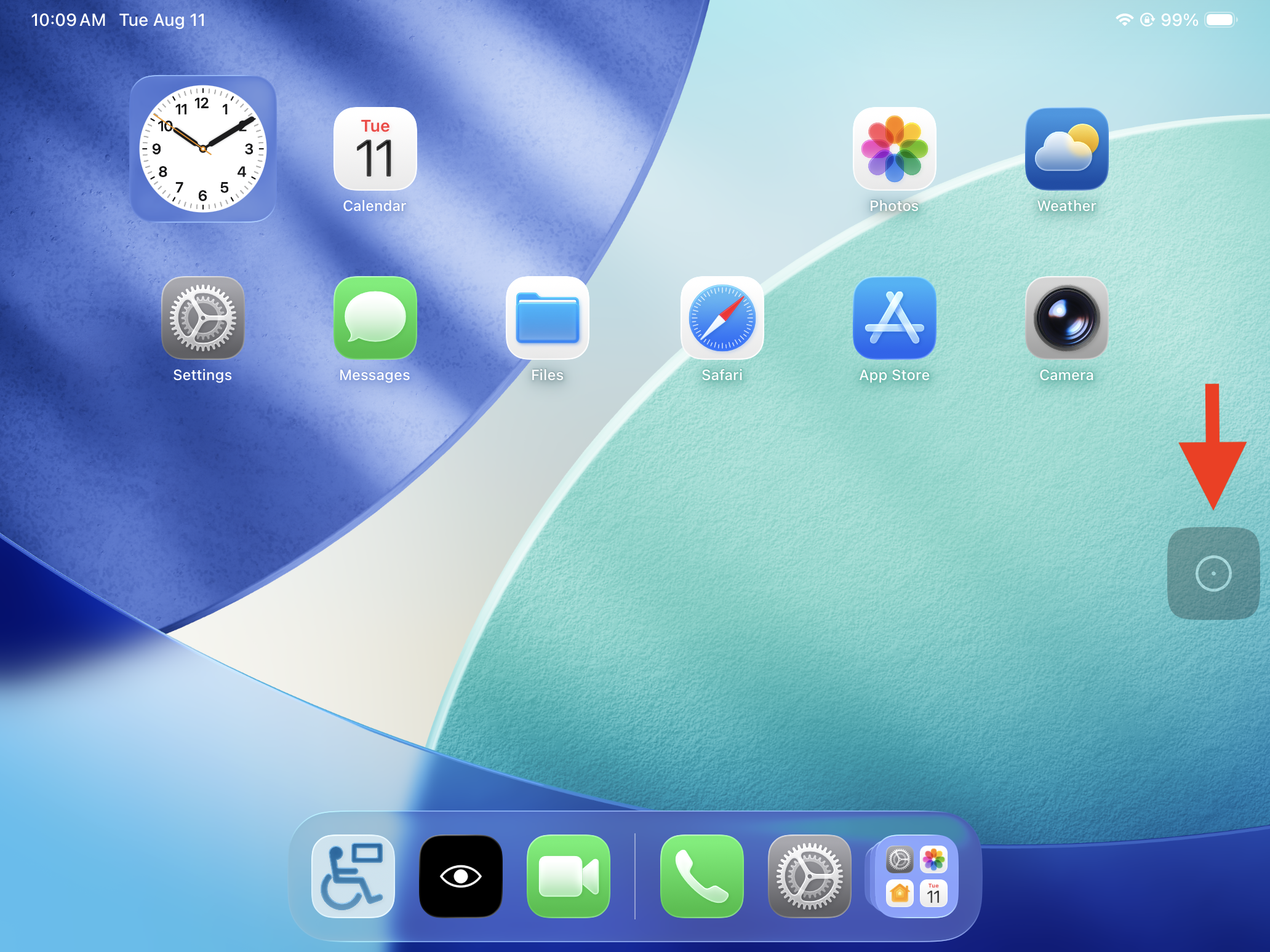
AssistiveTouch Menu
The Ability Drive A13I ships with these eight buttons in the AssistiveTouch menu:
| Button | Type | What it does |
|---|---|---|
| Dwell | Opens a menu | Pause or resume dwell, and switch the dwell action back to Tap |
| Long Press | Action | Your dwell becomes a press-and-hold |
| Scroll | Action | Your dwell scrolls the area you look at |
| Hold and Drag | Action | Your dwell picks an item up to move it |
| Device | Opens a menu | Volume, lock screen, restart, screenshot |
| Control Center | Command | Wi-Fi, brightness, volume |
| App Switcher | Command | Shows all open apps |
| Home | Command | Returns to the home screen |
Using AssistiveTouch: Actions vs. Commands
The buttons on your menu do two different kinds of things. Mixing them up is a common source of confusion.
Commands happen immediately. You dwell on them and something occurs right away.
Commands: Home, App Switcher, Control Center, Device
Actions change what your next dwell does. You dwell on them, the menu closes, and from then on your dwell performs that action instead of a normal tap.
Actions: Long Press, Scroll, Hold and Drag
So to scroll a page, you do not dwell on Scroll and wait for the page to move. You dwell on Scroll, then dwell on the page, and that is what scrolls.
Getting Started
- The eye-tracker must be calibrated. See: How to Calibrate - Eyetuitive.
- AssistiveTouch is already set up on the A13I. You do not need to configure anything.
- If your menu does not match the table above, an ATP or caregiver may have changed it.
1. Open the AssistiveTouch Menu
Step 1: Look at the floating AssistiveTouch button on the edge of the screen.
Step 2: Hold your gaze on it until the dwell indicator completes.
Step 3: The menu opens with the eight buttons.
To close the menu without choosing anything, look anywhere outside it and dwell.
2. Tap Something
You do not need the menu for this. Tap is what dwell does normally.
Step 1: Look at what you want — an app icon, a button, a link.
Step 2: Hold your gaze still. The dwell indicator closes around it.
Step 3: When it completes, the iPad taps it.
If nothing happens: dwell may be paused, or you may be in a different dwell action. See Troubleshooting below.
3. Pause Dwell (Rest Your Eyes)
This is the most important one to learn. Dwell acts on anything you look at long enough, including things you did not mean to select. Pausing lets you look around, watch something, or rest without setting anything off.
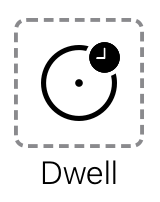
Step 1: Open the AssistiveTouch menu.
Step 2: Dwell on Dwell.
Step 3: Dwell on Pause Dwell.
Step 4: The pointer still follows your gaze, but nothing will activate.
To resume: open the menu, dwell on Dwell, then Resume Dwell.
4. Go to the Home Screen
Use this to leave an app and get back to your icons, including leaving Eyetuitive to open Ability Drive.

Step 1: Open the AssistiveTouch menu.
Step 2: Dwell on Home.
5. Switch to Another App
Faster than going Home and reopening — useful for moving between Ability Drive and Eyetuitive.
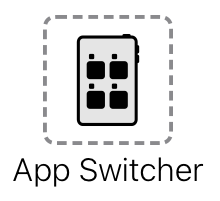
Step 1: Open the AssistiveTouch menu.
Step 2: Dwell on App Switcher.
Step 3: Open apps appear as cards.
Step 4: Dwell on the app you want.
6. Scroll a Page
For reading a webpage, a message thread, or a long list.
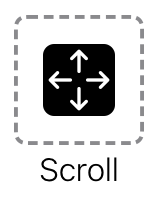
Step 1: Open the AssistiveTouch menu.
Step 2: Dwell on Scroll. The menu closes.
Step 3: Dwell on the part of the screen you want to scroll. Scroll arrows appear.
Step 4: Dwell on the up or down arrow to move the page.
Step 5: When you are finished, open the menu, dwell on Dwell, then Tap to go back to normal tapping.
7. Long Press
A long press opens the extra options that appear when you press and hold something: renaming, sharing, or an app's quick actions. Step 1: Open the AssistiveTouch menu.
Step 2: Dwell on Long Press. The menu closes.
Step 3: Dwell on the item you want to press and hold.
Step 4: The options appear. Dwell on the one you want.
Step 5: Switch back to Tap when you are finished: menu → Dwell → Tap.
8. Hold and Drag
Picks something up and moves it: rearranging icons, moving a slider, dragging a file.
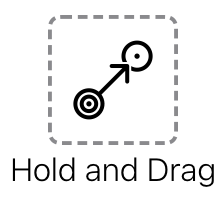 Step 1: Open the AssistiveTouch menu.
Step 2: Dwell on Hold and Drag. The menu closes.
Step 3: Dwell on the item you want to move. It lifts.
Step 4: Look at where you want it and dwell again. It drops there.
Step 5: Switch back to Tap when you are finished: menu → Dwell → Tap.
9. Open Control Center
Control Center is where Wi-Fi, brightness, and volume live.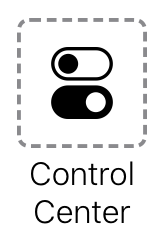 Step 1: Open the AssistiveTouch menu.
Step 2: Dwell on Control Center.
Step 3: Dwell on any control to adjust it.
Step 4: Dwell outside the panel to close it.
10. Device
These are the iPad's physical buttons, in software: volume, lock screen, and restart. Step 1: Open the AssistiveTouch menu.
Step 2: Dwell on Device.
Step 3: Choose Volume Up, Volume Down, Mute, or Lock Screen.
Step 4: Dwell on More for further options, including Restart and Screenshot.
11. Restarting
If the iPad becomes slow, frozen, or unresponsive, restarting it usually clears the problem.
Step 1: Open the AssistiveTouch menu.
Step 2: Dwell on Device, then More, then Restart.
Step 3: Confirm when asked.
Step 4: Wait for the iPad to start up, then reopen eyetuitive and Ability Drive.
12. Typing
Step 1: Dwell on any text field. The keyboard appears on screen automatically.
Step 2: Dwell on each key to type it.
Step 3: Dwell on the dismiss key to close the keyboard.
Quick Reference
| I want to… | Do this |
|---|---|
| Tap something | Look at it and hold your gaze |
| Go back to normal tapping | Menu → Dwell → Tap |
| Stop things activating by accident | Menu → Dwell → Pause Dwell |
| Leave an app | Menu → Home |
| Move between apps | Menu → App Switcher |
| Scroll a page | Menu → Scroll, then dwell on the page |
| Open press-and-hold options | Menu → Long Press, then dwell on the item |
| Move something on screen | Menu → Hold and Drag, dwell to lift, dwell to drop |
| Change volume or lock the screen | Menu → Device |
| Restart the iPad | Menu → Device → More → Restart |
| Change Wi-Fi or brightness | Menu → Control Center |
| Type | Dwell on a text field, then dwell on keys |
Troubleshooting
Everything I look at scrolls, or opens the wrong thing.
You are still in Scroll, Long Press, or Hold and Drag. These stay switched on until you change them. Open the menu, dwell on Dwell, then Tap.
The pointer moves but nothing ever activates.
Dwell is paused. Open the menu, dwell on Dwell, then Resume Dwell.
The pointer does not move at all.
The eye-tracker cannot see you. Check the Eyetuitive positioning guide. Restart the iPad, if needed.
The pointer lands near what I want but not on it.
The calibration has drifted. Recalibrate in Eyetuitive. See: How to Calibrate - Eyetuitive.
Things activate before I mean them to.
Use Pause Dwell whenever you are resting or reading. If it keeps happening, lengthen the dwell time.
The AssistiveTouch button is covering something.
A caregiver can drag it to a different edge of the screen by touch.
The screen is black.
Your A13I is set never to sleep on its own, so a black screen usually means the iPad has been locked or has run out of battery. A caregiver can tap the screen to wake it. Check that the charging cable is connected.
The iPad is completely frozen and the menu will not open.
A caregiver will need to restart the iPad using the physical buttons. If that does not work, call Tolt support.
For ATPs and Caregivers
The A13I ships pre-configured. The settings below are the ones most often adjusted for an individual user.
| Setting | Shipped as | Where |
|---|---|---|
| Dwell time | 1.5 seconds | Accessibility › Touch › AssistiveTouch › Pointer Devices |
| Movement Tolerance | About 1/3 | Same screen, increase if the user's gaze drifts while holding |
| Smoothing | 49% | Same screen, raise to steady a jittery pointer |
| Snap to Item | On | Same screen, turn Off to disable Snap to Item |
| Menu contents | 8 icons | AssistiveTouch › Customize Top Level Menu |
Next:
How to Start Ability Drive - Eyetuitive
Ability Drive for iOS - App Overview
Technical support is available Monday - Friday, 7:00am - 3:00pm PST. Please call (425)242-3902 or email support@tolttechnologies.com.